> For the complete documentation index, see [llms.txt](https://docs.duplocloud.com/docs/llms.txt). Markdown versions of documentation pages are available by appending `.md` to page URLs; this page is available as [Markdown](https://docs.duplocloud.com/docs/armor/skills.md).
# Skills
Give you agent super powers by adding skills
Skills define the tasks the Duplo Agent can perform, such as Kubernetes operations, CI/CD workflows, and security tasks. Personas group related Skills by role or function, such as DevOps or Full Stack.
At its core, a Skill is a folder containing a `SKILL.md` file. This file includes required metadata (at minimum, name and description), and instructions that tell the Agent how to perform a specific task. A Skill can also include supporting assets such as scripts, templates, and reference materials. [Learn more about Skills here](https://agentskills.io/what-are-skills).
{% hint style="info" %}
Your `SKILL.md` file should begin with a clear **name** and **description** so the agent knows when and how to apply the skill. Without this, the agent may not activate the skill at the right time or understand its intended purpose. For more tips on how to create skills the right way, [please refer to this article here](https://agentskills.io/specification).
{% endhint %}
There are three Skill types in the Duplo Platform:
**Pre-Built Skills**: The platform provides pre-built Skills that you can use to quickly create and configure your first Workspace.
**External Skills**: You can use Skills from third-party vendors directly within the platform. Examples include:
* [Pulumi Agent Skills](https://github.com/pulumi/agent-skills/)
* [HashiCorp Agent Skills](https://github.com/hashicorp/agent-skills/)
* [Azure Agent Skills](https://github.com/microsoft/skills/)
**Custom Skills**: You can create your own Skills from scratch to meet your organization’s specific requirements. These can be simple SKILL.md files or packages in zip files.
## Creating a Skill
### Method 1 — External Skill
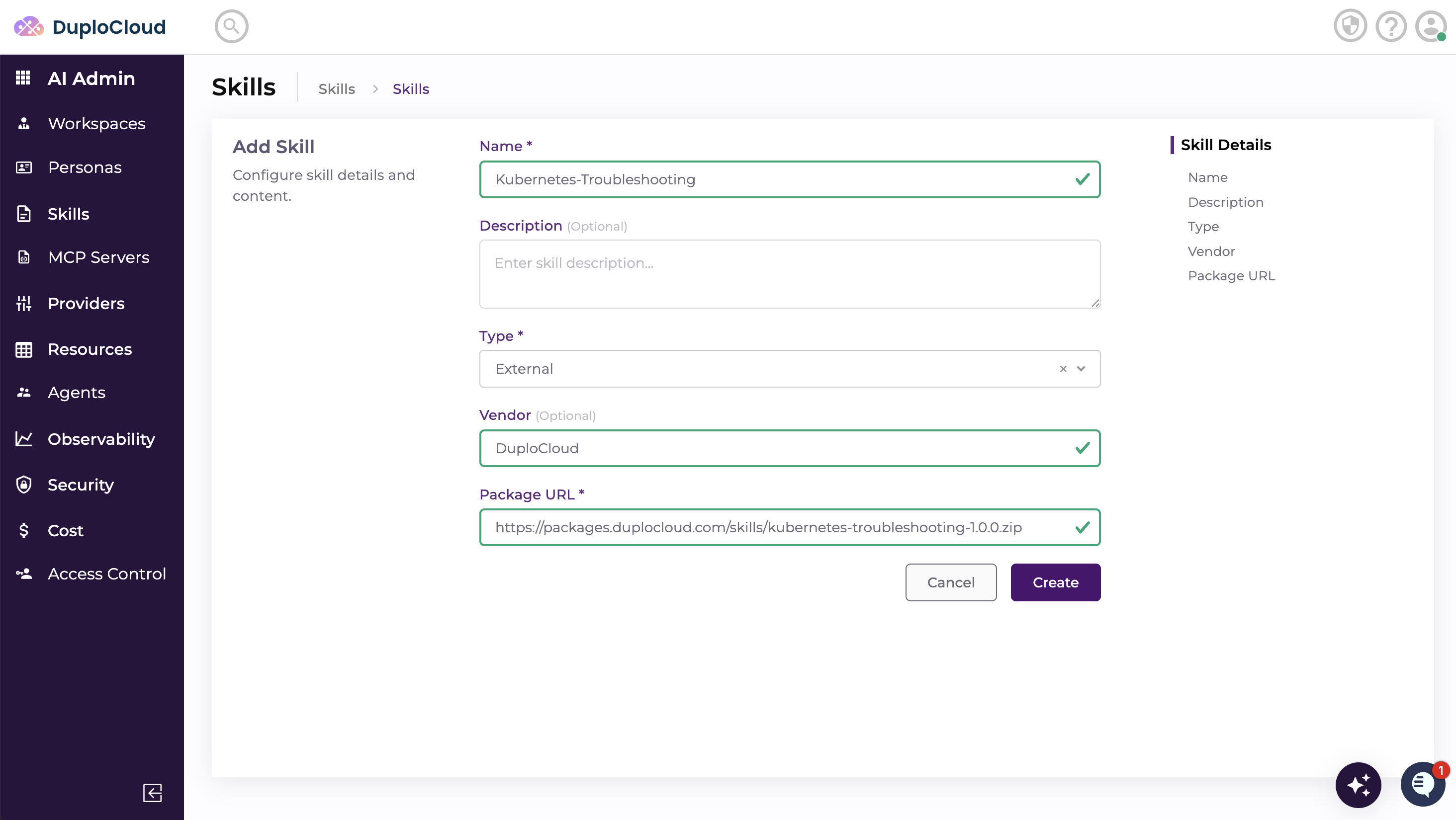
Use this method to add a skill hosted at a public or vendor-provided URL (e.g. a `.zip` package from HashiCorp or Pulumi).
1. Navigate to **AI Admin → Skills** and click **+ Add**.
2. Fill in the following fields:
* **Name** — a unique identifier for the skill (e.g. `Kubernetes-Troubleshooting`)
* **Type** — select **External**
* **Vendor** *(optional)* — the name of the skill provider (e.g. `DuploCloud`)
* **Package URL** — the URL to the skill package (e.g. `https://packages.duplocloud.com/skills/kubernetes-troubleshooting-1.0.0.zip`)
3. Click **Create**.
### Method 2 — Custom Skill
Use this method to create your own skill from scratch. Custom skills can be added either as an uploaded package or as a `SKILL.md` file pasted directly into the editor.
#### Package
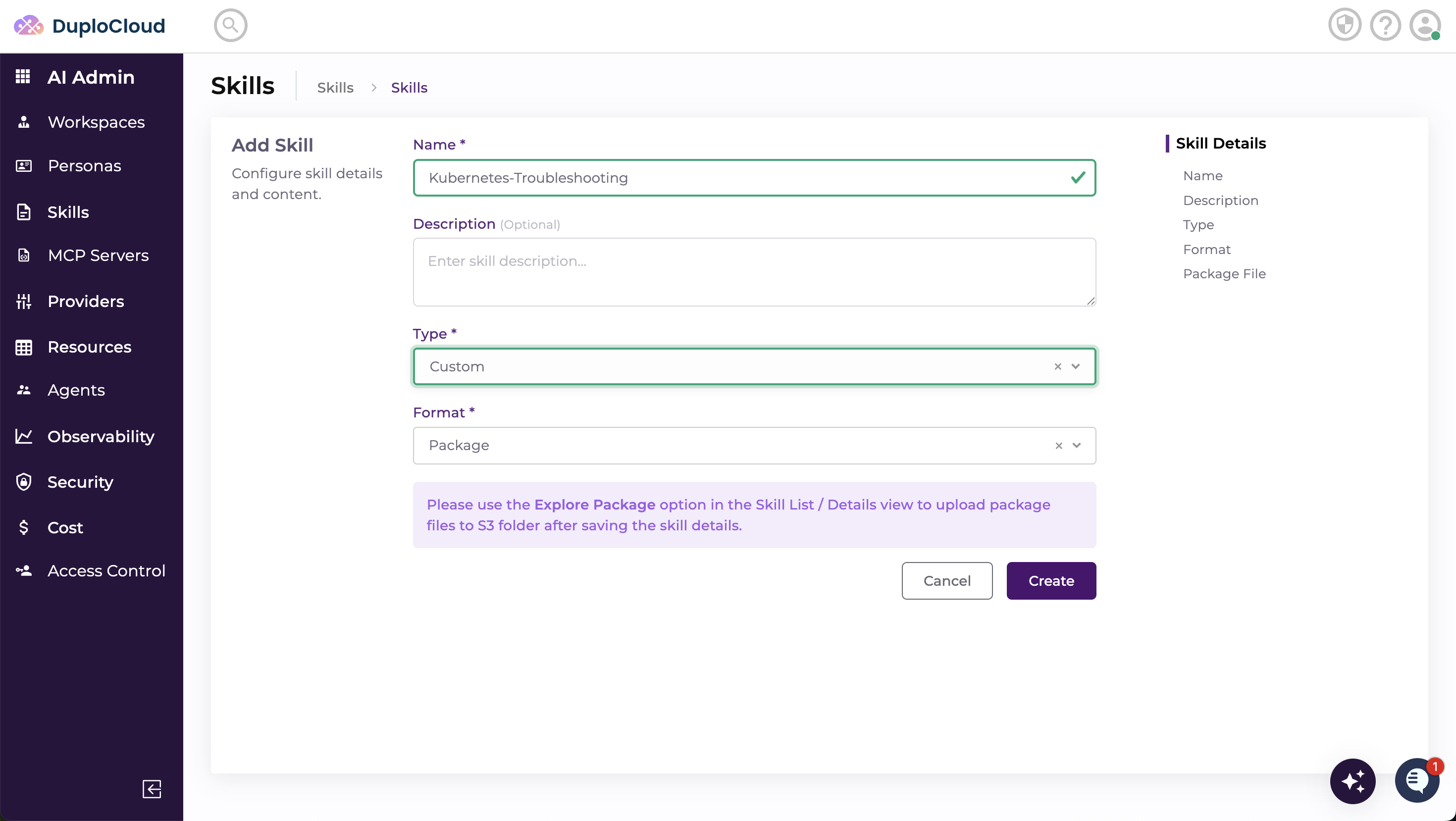
1. Navigate to **AI Admin → Skills** and click **+ Add**.
2. Fill in the following fields:
* **Name** — a unique identifier for the skill
* **Type** — select **Custom**
* **Description** *(optional)* — a short description of what the skill does
3. Click **Create**.
4. Upload a zip file from the package explorer in the Kebab Menu of the Skills List page.
#### SkillMd
1. Navigate to **AI Admin → Skills** and click **+ Add**.
2. Fill in the following fields:
* **Name** — a unique identifier for the skill
* **Type** — select **Custom**
* **Description** *(optional)* — a short description of what the skill does
3. Paste the `SKILL.md` file content directly into the editor on this page.
4. Click **Create**.
### Method 3 — From a Private Git Repository
Use this method to pull a skill directly from a GitHub repository, giving you version control and easy updates without manual uploads.
#### Step 1 — Navigate to Skills
Go to **AI Admin → Skills** in the left sidebar. This page lists all skills available in your environment, including built-in skills and any custom ones you have added. Each skill shows its name, description, assigned personas, type, format, and package path.
#### Step 2 — Add a New Skill
Click **+ Add** in the top right. Fill in the following fields:
* **Name** — a unique identifier for the skill (e.g. `Jira-skill`)
* **Type** — select **Private Git Repository**
* **Scope** — select the GitHub provider you have already configured (e.g. `github1`)
* **Organization Name** — your GitHub organization or username (e.g. `nariklama`)
* **Repository Name** — the name of the repository containing your skill files (e.g. `DuploCloud-Skill-repo`)
* **Ref** — the branch to pull from (e.g. `main`)
* **Folder** *(optional)* — the subfolder within the repository where the skill file lives (e.g. `skill`)
{% hint style="warning" %}
The skill file inside your repository **must be named `SKILL.md`**. The agent will not be able to locate or load the skill if the file is named anything else.
{% endhint %}
{% hint style="info" %}
Your `SKILL.md` file should begin with a clear **name** and **description** so the agent knows when and how to apply the skill. Without this, the agent may not activate the skill at the right time or understand its intended purpose. For more tips on how to create skills the right way, [please refer to this article here](https://agentskills.io/specification).
{% endhint %}

#### Step 3 — Click Create
Click **Create** to save the skill.
#### Step 4 — Skill Successfully Created
The Skills list now shows the new skill at the top with a **Last Modified** timestamp confirming it was just created. The total skill count increases by one. The skill is now available to be attached to any ticket or persona in the system.

## Attaching a Skill to a Ticket
Once a skill has been created using any of the methods above, you can attach it when creating a new ticket.
When creating a new ticket, expand **Advanced Options** and open the **Additional Skills** dropdown. Select the skill you want to use. This instructs the agent to load and follow the skill's instructions for the duration of this ticket, in addition to its default persona behaviour.

Once the ticket is created, the agent confirms that the skill has been loaded. The **Context Files** panel shows the skill folder alongside other skills in the session. The agent explicitly confirms the skill is active and available in the system context for this ticket.

### Referencing a Skill with the Slash Picker
Once a skill is attached to a ticket — via **Additional Skills** above, or already active on an existing ticket — you can reference it inline instead of relying on it to run silently in the background. Type `/` at the start of your message, or after a space, to open a picker listing the skills already attached to that ticket.

Keep typing to filter — it matches anywhere in the skill's name, not just the start. Use the arrow keys and **Enter** (or **Tab**) to select, or click a row. Selecting a skill inserts `/skill-name` into your message at the cursor.

The picker works the same way in an existing ticket's chat input, not just when creating a new ticket.

{% hint style="info" %}
The `/` picker only lists skills **already attached** to the ticket — it's a quick way to reference one inline, not a way to attach a new skill. To make a skill available in the first place, add it under **Additional Skills** as described above.
{% endhint %}
#### Example: Sample `SKILL.md` file:
{% code expandable="true" %}
````
---
name: k8s-aws-log-correlation
description: "Correlate Kubernetes and AWS logs. MUST invoke when: (1) user mentions both K8s/EKS and any AWS service (CloudTrail, VPC Flow Logs, ALB, S3, IAM, EC2) in the same debugging context; (2) user asks how a pod or node maps to an AWS resource; (3) user asks about cross-layer tracing, IRSA/IAM issues from pods, or pod network traffic in AWS logs."
metadata:
author: claude
version: "1.0"
---
# Kubernetes + AWS Log Correlation
## On Activation
**Always notify the user at the start of every response:**
> "🔧 *Using skill: k8s-aws-log-correlation*"
Do this before any other content, without exception.
## Core Principle
Correlation works by finding **shared identifiers** that appear in both K8s and AWS log sources. Always align timestamps to UTC first.
| Identifier | Kubernetes Side | AWS Side |
|---|---|---|
| Pod IP | Pod metadata | VPC Flow Logs, ALB access logs |
| Node name → EC2 ID | Node spec `.spec.providerID` | CloudTrail, EC2, SSM |
| Request/Trace ID | App logs, ingress annotations | ALB access logs, API Gateway logs |
| IAM Role ARN | ServiceAccount IRSA annotation | CloudTrail `userIdentity` |
| Timestamp (UTC) | All logs | All logs |
---
## Step-by-Step Correlation Workflows
### 1. Pod → EC2 Node Mapping
Use this to connect pod-level events to EC2-level AWS logs (CloudTrail, SSM, VPC Flow Logs).
```bash
# Get the node a pod is running on
kubectl get pod -n -o jsonpath='{.spec.nodeName}'
# Get the EC2 instance ID from the node
kubectl get node -o jsonpath='{.spec.providerID}'
# Returns: aws:///us-east-1a/i-0abc123def456
# Extract just the instance ID
kubectl get node -o jsonpath='{.spec.providerID}' | awk -F'/' '{print $NF}'
```
Use the EC2 instance ID to search CloudTrail or VPC Flow Logs for events from that host.
---
### 2. IAM / Permissions Issues (IRSA → CloudTrail)
Use when a pod is getting `AccessDenied` or making unexpected AWS API calls.
```bash
# Find the ServiceAccount used by the pod
kubectl get pod -o jsonpath='{.spec.serviceAccountName}'
# Get the IAM role ARN from the ServiceAccount annotation
kubectl get sa -n -o jsonpath='{.metadata.annotations.eks\.amazonaws\.com/role-arn}'
# Search CloudTrail for calls made by that role
aws cloudtrail lookup-events \
--lookup-attributes AttributeKey=Username,AttributeValue= \
--start-time \
--end-time
```
Cross-reference the CloudTrail `eventTime` with pod log timestamps to confirm which pod made a given API call.
---
### 3. Network Traffic (Pod IP → VPC Flow Logs)
Use this when debugging connectivity failures or unexpected traffic. Works best with AWS VPC CNI (pod IPs are VPC-routable).
```bash
# Get pod IP
kubectl get pod -o jsonpath='{.status.podIP}'
# Query VPC Flow Logs in CloudWatch Logs Insights
# (run in the AWS Console or via CLI)
```
```sql
-- CloudWatch Logs Insights query
fields @timestamp, srcAddr, dstAddr, action, bytes
| filter srcAddr = "" or dstAddr = ""
| sort @timestamp desc
| limit 50
```
---
### 4. Request Tracing (ALB → Pod Logs)
Use when a user reports a failed HTTP request and you need to find it end-to-end.
```bash
# ALB access logs contain a trace ID field: traceId
# Enable ALB access logs in the AWS Console or via:
aws elbv2 modify-load-balancer-attributes \
--load-balancer-arn \
--attributes Key=access_logs.s3.enabled,Value=true \
Key=access_logs.s3.bucket,Value=
# Search ALB logs for a request by IP or path, note the traceId
# Then grep pod logs for that traceId (requires app to propagate the header)
kubectl logs | grep
```
To propagate trace IDs automatically, configure your ingress to pass `X-Amzn-Trace-Id` downstream and log it in your application.
---
### 5. Full End-to-End Example: Failing S3 Call from a Pod
```bash
# Step 1: Identify the pod and its service account
kubectl get pod my-pod -o jsonpath='{.spec.serviceAccountName}'
# → my-sa
# Step 2: Get the IAM role ARN
kubectl get sa my-sa -o jsonpath='{.metadata.annotations.eks\.amazonaws\.com/role-arn}'
# → arn:aws:iam::123456789:role/my-pod-role
# Step 3: Note the error timestamp from pod logs (UTC)
kubectl logs my-pod --since-time=2026-05-19T10:00:00Z | grep -i "error\|denied\|fail"
# Step 4: Search CloudTrail for that role in the same window
aws cloudtrail lookup-events \
--lookup-attributes AttributeKey=Username,AttributeValue=my-pod-role \
--start-time 2026-05-19T10:00:00Z \
--end-time 2026-05-19T10:05:00Z \
--query 'Events[*].{Time:EventTime,Event:EventName,Error:CloudTrailEvent}' \
--output table
```
---
## Tooling Options
### Centralized Aggregation (Recommended for Production)
| Tool | Approach |
|---|---|
| **Fluent Bit + AWS OpenSearch** | Ship K8s logs enriched with `node`, `pod`, `namespace`, `ec2_instance_id` fields. Ingest AWS logs to the same index. Join on shared fields. |
| **CloudWatch Container Insights** | Native AWS option. Auto-enriches K8s logs with cluster/node/pod metadata. Use Log Insights for cross-source queries. |
| **Datadog / Grafana Loki** | Tag-based correlation. Define unified tagging strategy (`service`, `env`, `host`) across K8s and AWS. |
| **AWS X-Ray + OpenTelemetry** | Distributed tracing across pods and AWS services (Lambda, S3, DynamoDB). Best for request-level correlation. |
### Fluent Bit Enrichment Config (Key Fields to Add)
```ini
[FILTER]
Name kubernetes
Match kube.*
Kube_Tag_Prefix kube.var.log.containers.
Merge_Log On
Keep_Log Off
Annotations Off
Labels On
# Adds: kubernetes.pod_name, node_name, namespace_name, container_name
```
Then add a custom record modifier to append the EC2 instance ID from the instance metadata service (IMDS).
---
## CloudWatch Log Insights: Cross-Source Queries
When both K8s and AWS logs are in CloudWatch, use Log Insights to correlate across log groups:
```sql
-- Join pod logs with VPC Flow Logs by pod IP
fields @timestamp, @log, @message
| filter @logStream like /my-pod/ or srcAddr = "10.0.1.25"
| sort @timestamp asc
```
---
## Best Practices
1. **UTC everywhere** — Mismatched timezones are the #1 cause of failed correlation. Set `TZ=UTC` in all containers and standardize AWS log delivery.
2. **Enrich at collection time** — Add `ec2_instance_id`, `cluster`, `namespace`, `pod` as structured fields via Fluent Bit before logs leave the node. Retrofitting is expensive.
3. **Propagate trace IDs** — Use OpenTelemetry or inject `X-Request-ID` at the ALB/ingress and require apps to log it. This is the most reliable correlation anchor.
4. **Index on join fields** — In OpenSearch/CloudWatch, ensure `pod_ip`, `ec2_instance_id`, and `trace_id` are indexed fields, not buried in raw message strings.
5. **Use structured logging** — JSON logs are far easier to query. Avoid unstructured text logs in production.
---
## Common Edge Cases
- **Fargate pods**: No EC2 node to correlate on. Use pod identity and trace IDs instead; VPC Flow Logs still capture pod IPs.
- **NAT/shared IPs**: If pods share a NAT gateway IP for outbound traffic, VPC Flow Logs won't identify individual pods — rely on trace IDs or CloudTrail role ARNs.
- **Clock skew**: Container clocks can drift. Use a 30–60 second buffer when filtering by time window across log sources.
- **Log delivery lag**: VPC Flow Logs and CloudTrail can have 5–15 minute delivery delays. Account for this when correlating near-real-time.
````
{% endcode %}
#### Example: Illustration of a skill folder structure
```
skills/
├── SKILL.md
├── infrastructure/
│ ├── terraform.md
│ ├── kubernetes.md
│ └── cloud-provisioning.md
├── cicd/
│ ├── pipeline-management.md
│ └── deployment-strategies.md
├── observability/
│ ├── monitoring.md
│ └── logging.md
├── security/
│ ├── scanning.md
│ └── secrets-management.md
└── incident-response/
├── troubleshooting.md
└── root-cause-analysis.md
```
---
# Agent Instructions
This documentation is published with GitBook. GitBook is the documentation platform designed so that both humans and AI agents can read, navigate, and reason over technical content effectively. Learn more at gitbook.com.
## Querying This Documentation
If you need additional information that is not directly available in this page, you can query the documentation by asking a question.
Perform an HTTP GET request on the following URL with the `ask` and `goal` query parameters:
```
GET https://docs.duplocloud.com/docs/armor/skills.md?ask=&goal=
```
`ask` is the immediate question: it should be specific, self-contained, and written in natural language.
`goal` is what the user is ultimately trying to achieve, the reason they need the answer. Sharing it helps GitBook give you a better, more relevant answer. A goal is most helpful when it describes the outcome the user wants rather than restating the question. For example, with `ask=how do I create an API token`, a goal like `automate deployments from our CI pipeline` lets GitBook tailor the answer to that use case.
The response will contain a direct answer to the question and relevant excerpts and sources from the documentation.
Use this mechanism when the answer is not explicitly present in the current page, you need clarification or additional context, or you want to retrieve related documentation sections.