# Customizing Dashboards

DuploCloud AOS users can tailor observability for their Kubernetes clusters by managing OpenTelemetry stacks and configuring Grafana dashboards to meet specific needs. Additionally, custom links can be added to AOS dashboard cards, enabling seamless integration with external tools or data sources.

By default, each Kubernetes cluster in DuploCloud has its own dedicated OpenTelemetry (OTEL) stack. If you need to share an OTEL stack across multiple clusters, contact DuploCloud Support.

## Configuring OpenTelemetry Cards

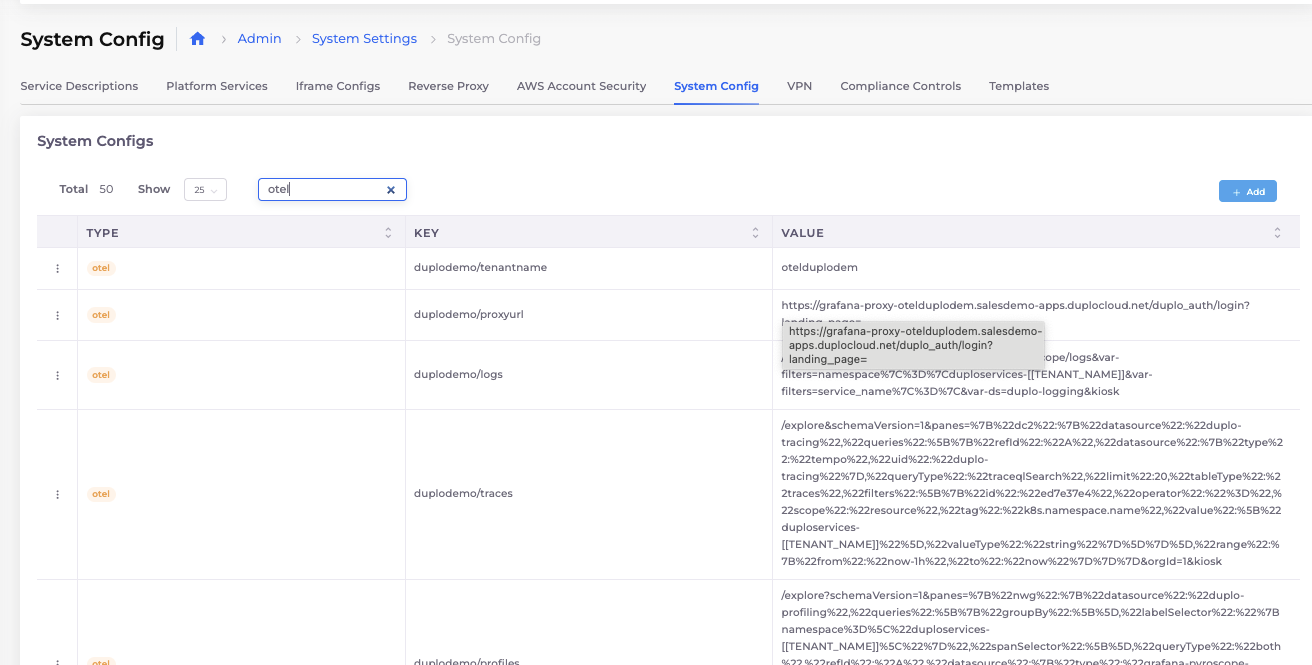
In the AOS dashboard, the OpenTelemetry section features five cards that link to Grafana dashboards. To configure these cards and their links, go to **Administrator** -> **System Settings** -> **System Config** in the DuploCloud Portal and search for `otel` as shown in the image below.

<figure><img src="https://2471407984-files.gitbook.io/~/files/v0/b/gitbook-x-prod.appspot.com/o/spaces%2F68cb0s9ce5UIUKWPuYs8%2Fuploads%2FNYi7rYJkqcjXs3Dqllfu%2Fimage.png?alt=media&#x26;token=a9bf11c8-c241-460b-aaf7-1d8d99f25acf" alt=""><figcaption></figcaption></figure>

Each configuration entry corresponds to a card on the dashboard. Entries that start with `<infraname>/` apply to the cards for that specific Infrastructure, (in the Administrator AOS Dashboard, all cards reference the Infrastructure selected from the **Infrastructure** list box), as shown in the table below.

| Setting Name          | Card                            | Dashboard Type |
| --------------------- | ------------------------------- | -------------- |
| \<infraname>/proxyurl | Grafana button on the dashboard | Admin          |
| \<infraname>/logs     | Logs Button                     | Admin          |
| \<infraname>/metrics  | Metrics Button                  | Admin          |
| \<infraname>/traces   | Traces Button                   | Admin          |
| \<infraname>/k8s      | K8S Button                      | Admin          |

{% hint style="info" %}
Configuration settings include placeholders like **TENANT\_NAME**, **INFRA\_NAME**, and **NAMESPACE** that are dynamically updated when interacting with the dashboard. You can edit these values to refer to specific Tenants, Infrastructures, or Namespaces.
{% endhint %}

## Creating New Dashboards

For detailed instructions on customizing Grafana dashboards, refer to the official [Grafana Documentation on Dashboards](https://grafana.com/docs/grafana/latest/dashboards/).

## Adding Custom Dashboard Links

For custom dashboards or manually instrumented applications, you may need to add custom links to your AOS dashboards to lead to the specific data or external tools associated with your custom configurations. Follow these steps to add custom links to data cards as an administrator or non-administrator:

### Adding Administrator Custom Links

1. From the DuploCloud Portal, navigate to **Administrator** -> **Observability** -> **Advanced** -> **Dashboard**.
2. Click the link icon (<img src="https://2471407984-files.gitbook.io/~/files/v0/b/gitbook-x-prod.appspot.com/o/spaces%2F68cb0s9ce5UIUKWPuYs8%2Fuploads%2FKu9zEBe2QVPbvAZU5FVv%2Fnew%20link%20icon.png?alt=media&#x26;token=1da1a016-c1fe-479b-b77a-c69fc56a1b78" alt="" data-size="line">) on the card where you want to add a custom link. The **All Admin Custom Links** pane displays.
3. Select the **Admin** tab to add a custom link to the Administrator AOS Dashboard or the **Common** tab to add a custom link to the Tenant AOS Dashboard dashboard.
4. Click **Add**. The **Add&#x20;*****DATA\_CARD\_NAME*****&#x20;Custom Link** pane displays.
5. Enter details for the custom link:
   * **Name:** The label for the link.
   * **URL:** The target location (e.g., `<infraname>/logs/tenant` for Tenant-specific logs or `<infraname>/metrics/tenant` for tenant-specific metrics).
   * **Description:** Optional details about the link.
6. Click **Submit**. The custom link is added to the data card.

<div align="left"><figure><img src="https://2471407984-files.gitbook.io/~/files/v0/b/gitbook-x-prod.appspot.com/o/spaces%2F68cb0s9ce5UIUKWPuYs8%2Fuploads%2F4xKkM26OiBOO02IyEtih%2Fnew%20logs.png?alt=media&#x26;token=ed988018-7cd0-4d20-b955-ece58db9ab67" alt="" width="354"><figcaption><p>The <strong>Logs</strong> data card with the link icon highlighted</p></figcaption></figure></div>

### Adding Tenant Custom Links

Add custom links to Tenant dashboards.

1. From the DuploCloud Portal, navigate to **Observability** -> **Advanced** -> **Dashboard.**
2. Click the link icon (<img src="https://2471407984-files.gitbook.io/~/files/v0/b/gitbook-x-prod.appspot.com/o/spaces%2F68cb0s9ce5UIUKWPuYs8%2Fuploads%2FKu9zEBe2QVPbvAZU5FVv%2Fnew%20link%20icon.png?alt=media&#x26;token=1da1a016-c1fe-479b-b77a-c69fc56a1b78" alt="" data-size="line">) on the card where you want to add a custom link. The **All Tenant Custom Links** pane displays.
3. Click Add. The **Add&#x20;*****DATA\_CARD\_NAME*****&#x20;Custom Link** pane displays.
4. Enter a **Name**, **URL**, and **Description** for the custom link.
5. Click **Submit**. The custom link is added to the Tenant Dashboard.
