githubEdit

Azure Container Apps

Create and manage Azure Container Apps and their environments within DuploCloud

DuploCloud supports Azure Container Appsarrow-up-right, a fully managed serverless container service that enables you to deploy and manage containerized applications easily on Azure without managing Kubernetes clusters.

Prerequisites

Before creating Container App Environments and deploying Container Apps in DuploCloud, ensure the following:

Creating a Container App Environment

The Container App Environment is the hosting space for your containerized applications, defining compute profiles, networking, and logging.

To create a Container App Environment in the DuploCloud Portal:

  1. In the DuploCloud Portal, navigate to Cloud Services Serverless.

  2. Select the Container App Environment tab.

  3. Click Add. The Create Container App Environment pane displays.

    Create Container App Environment pane
  4. Fill out the fields as follows:

Name

Enter a unique name for the environment.

Workload Profile Name

Select the compute profile name (e.g., default).

Instance Min Count

Specify the minimum number of instances (e.g., 1).

Instance Max Count

Specify the maximum number of instances (e.g., 3).

Add New Workload Profile

(Optional)

Click to add multiple profiles if needed.

Log Configuration Destination

Select the log destination (e.g., Log Analytics). Provide any additional required details, such as the Log Analytics Workspace name or equivalent configuration for other logging services.

Subnet

Select the Azure subnet for deployment (e.g., subnet-containerapps-qa).

  1. Click Submit. Once created, the environment will be available under the Container App Environment tab.

    Container App Environment tab

Managing Container App Environments

After creating a Container App Environment, you can manage it in the DuploCloud Portal using the following options:

Viewing Container App Environments

  1. Navigate to Cloud Services Serverless.

  2. Select the Container App Environment tab.

  3. Click the name of the environment you want to view in the NAME column.

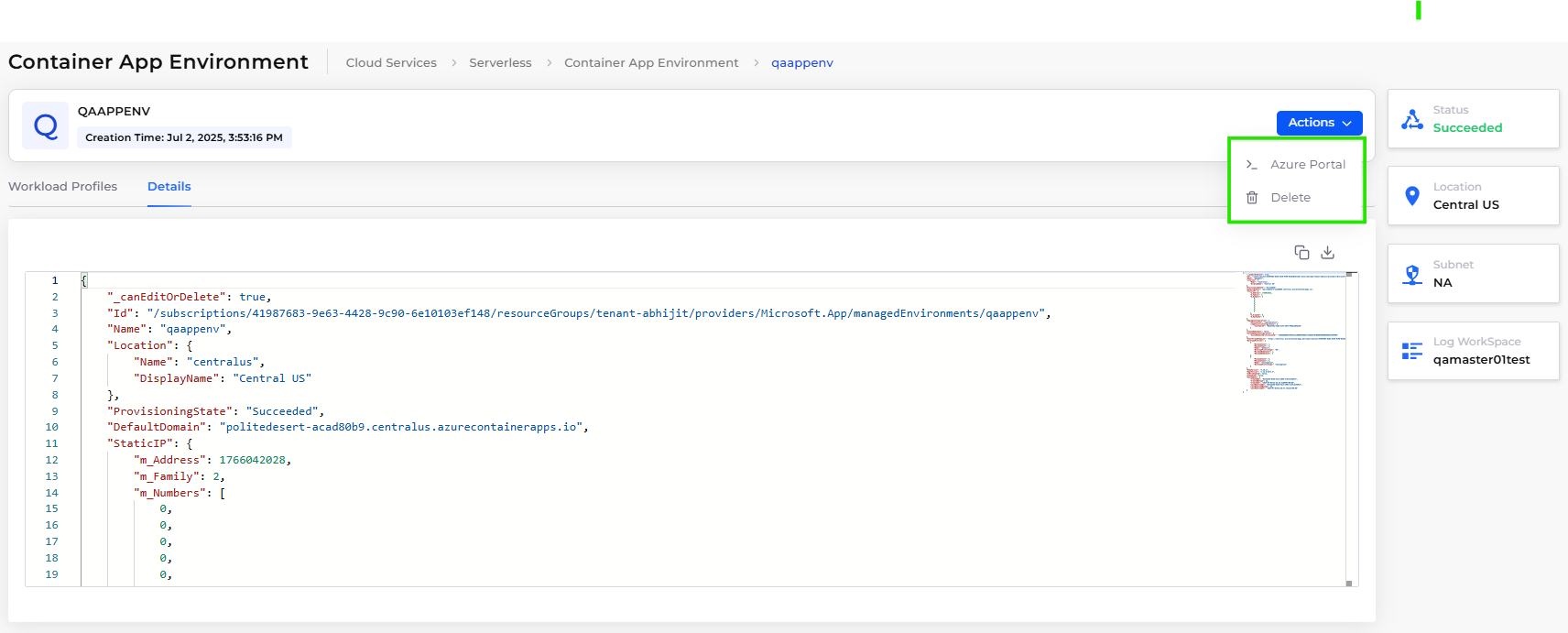
  4. On the environment details page, you can:

    • View environment details using the Workload Profiles and Details tabs.

    • Use the Actions button to:

      • Open the environment in the Azure Portal.

      • Delete the environment permanently.

Container App Environment details page with Actions menu options highlighted

Viewing, Editing, and Deleting Container App Environments

  1. Navigate to Cloud Services Serverless.

  2. Select the Container App Environment tab.

  3. Click the menu icon () in the row of the environment you want to manage.
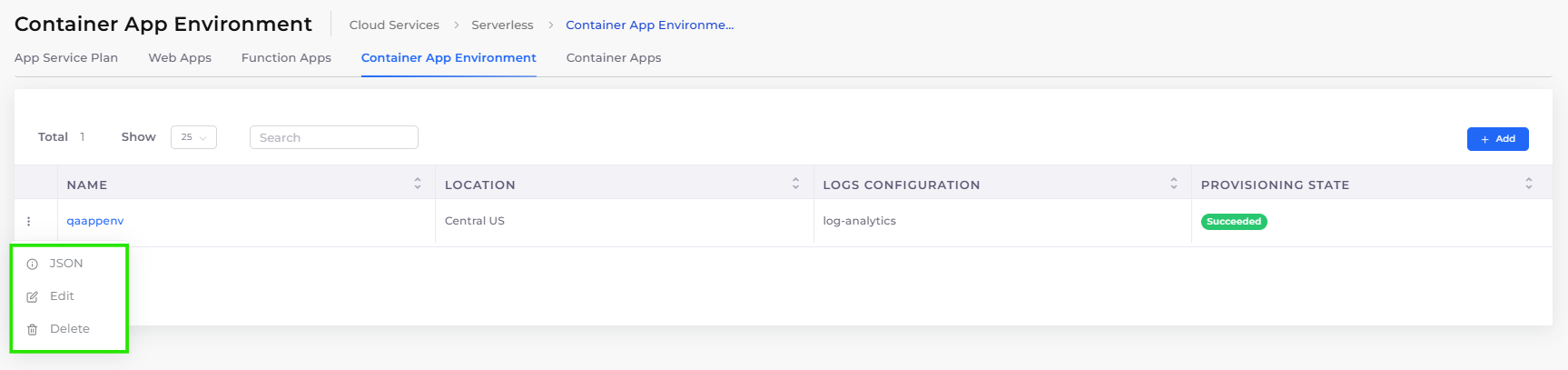
    Container App Environment tab with menu options highlighted
  4. Select one of the following actions:

    • JSON: View the environment’s JSON configuration.

    • Edit: Modify environment settings.

    • Delete: Permanently delete the environment.

Creating a Container App

After setting up the environment, you can deploy a container app.

  1. In the DuploCloud Portal, navigate to Cloud Services Serverless.

  2. Select the Container Apps tab.

  3. Click Add. The Create Container App - Basic Options pane displays.

    Create Container App - Basic Options pane
  4. Complete the fields as follows:

Container App Name

Enter a unique name for your app.

Container App Environment

Select the container app environment you created.

Workload Profile

Select the workload profile to use (e.g., default).

Ingress

Select Enabled to expose the app publicly or Disabled otherwise.

If enabled, specify: • Is External: true or falseTransport: http or httpsTarget Port: Enter the target port, e.g., 80Allow Insecure: true or false

  1. Click Next. The Create Container App - Advanced Options pane displays.

    Create Container App - Advanced Options pane
  2. Complete the following fields:

Container Name

Enter a name for the container instance.

Container Image

Enter the container image path without the registry server (e.g., azuredocs/containerapps-helloworld:latest).

Registry Server

Enter the registry server domain (e.g., mcr.microsoft.com).

Username / Password

If using a private registry, enter your credentials here; otherwise leave blank for public images.

CPU Cores

Enter the number of CPU cores to allocate (e.g., 0.5).

Memory (Gi)

Enter the amount of memory in GiB (e.g., 1.0).

Command override

Optionally enter a command to override the container’s default command. Leave blank if not needed.

Arguments override

Optionally enter arguments for the container command. Leave blank if not needed.

Environment Variables

LOehdndMhNrk

  1. Click Create to deploy your container app.

Managing Container Apps

Once you have deployed Container Apps, you can manage them through the DuploCloud Portal using the following methods:

Viewing Container Apps

  1. Navigate to Cloud Services Serverless.

  2. Select the Container App tab.

  3. Click the name of the container app you want to view in the NAME column.

  4. On the app details page, you can:

    • View the Registries, Containers, and Details tabs to review configuration and status.

    • Use the Actions button to:

      • Open the app in the Azure Portal.

      • Stop the container app.

      • Delete the container app. You must delete the Container App Environment before you can delete any Container Apps within it. Container Apps cannot be deleted while their environment still exists.

Container App details with Actions menu options highlighted

Viewing, Editing, and Deleting from the List

  1. Navigate to Cloud Services Serverless.

  2. Select the Container App tab.

  3. Click the menu icon () in the row of the container app you want to manage.

    Container App tab with menu options highlighted
  4. Select one of the following actions:

    • JSON: View the container app’s JSON configuration.

    • Edit: Modify container app settings.

    • Delete: Permanently delete the container app. You must delete the Container App Environment before you can delete any Container Apps within it. Container Apps cannot be deleted while their environment still exists.

Additional Resources

For more information on Azure Container Apps and related topics, see the following:

Last updated

Was this helpful?