# EKS Containers and Services

{% hint style="info" %}
For an end-to-end example of creating an EKS Service, see [this tutorial](https://docs.duplocloud.com/docs/automation-platform/overview/quick-start/quick-start-eks-services).

For a Native Docker Services example, see [this tutorial](https://docs.duplocloud.com/docs/automation-platform/overview/quick-start/quick-start-duplocloud-docker-services).
{% endhint %}

## Creating a DuploCloud EKS Service

1. In the DuploCloud Portal, navigate to **Kubernetes** -> **Services**.
2. Click **Add**. **The Add Service** pane displays.
3. Complete the following fields:

<table data-header-hidden><thead><tr><th width="211.111083984375">Field</th><th>Description</th></tr></thead><tbody><tr><td><strong>Service Name</strong></td><td>Give the Service a name (without spaces).</td></tr><tr><td><strong>App Name</strong></td><td>Optionally, enter an <strong>App Name</strong> for the Service. You can use this label later to filter Services.</td></tr><tr><td><strong>Cloud</strong></td><td>Select <strong>AWS</strong> from the list box.</td></tr><tr><td><strong>Platform</strong></td><td>Select <strong>EKS Linux</strong> from the list box.</td></tr><tr><td><strong>Docker Image</strong></td><td>Enter the Docker image.</td></tr><tr><td><strong>Allocation Tag</strong></td><td>Optionally, enter any allocation tags.</td></tr><tr><td><strong>Replica Strategy</strong></td><td>Select a replication strategy. Refer to the informational ToolTip (<img src="https://2471407984-files.gitbook.io/~/files/v0/b/gitbook-x-prod.appspot.com/o/spaces%2F68cb0s9ce5UIUKWPuYs8%2Fuploads%2FuvLbmbGr4kyGo3Stij1Q%2Fimage.png?alt=media&#x26;token=e3c6ccab-452d-4628-8ecb-337f5d1d9d9c" alt="" data-size="line">) for more information.</td></tr><tr><td><strong>Environmental Variables</strong></td><td>Optionally, enter variables.</td></tr><tr><td><strong>Replicas</strong></td><td>Specify the number of replicas (for <strong>Static</strong> replica strategy). The number must be less than or equal to the number of Hosts in the fleet.</td></tr><tr><td><strong>Replica Placement</strong></td><td>For <strong>Static</strong> or <strong>Horizontal Pod Autoscaler</strong> strategies. Select <strong>First Available</strong>, <strong>Place on Different Hosts</strong>, <strong>Spread Across Zones</strong>, or <strong>Different Hosts and Spread Across Zones</strong>. Refer to the informational ToolTip (<img src="https://2471407984-files.gitbook.io/~/files/v0/b/gitbook-x-prod.appspot.com/o/spaces%2F68cb0s9ce5UIUKWPuYs8%2Fuploads%2FuvLbmbGr4kyGo3Stij1Q%2Fimage.png?alt=media&#x26;token=e3c6ccab-452d-4628-8ecb-337f5d1d9d9c" alt="" data-size="line">) for more information.</td></tr><tr><td><strong>Force StatefulSets</strong></td><td>Select <strong>Yes</strong> or <strong>No</strong> (for <strong>Static</strong> or <strong>Horizontal Pod Autoscaler</strong> strategies).</td></tr><tr><td><strong>Tolerate spot instances</strong></td><td>Optionally, select this option (for <strong>Static</strong> or <strong>Horizontal Pod Autoscaler</strong> strategies).</td></tr><tr><td><strong>Use Fargate</strong></td><td>Select this option to run the Service on AWS Fargate instead of EC2-based worker nodes.</td></tr></tbody></table>

<figure><img src="https://2471407984-files.gitbook.io/~/files/v0/b/gitbook-x-prod.appspot.com/o/spaces%2F68cb0s9ce5UIUKWPuYs8%2Fuploads%2FB8KnAXuZT2lphyNQtzzk%2FScreenshot%20(936).png?alt=media&#x26;token=ca219773-eee2-4afd-ba33-a43c48612ed8" alt=""><figcaption><p>The <strong>Add Service, Basic Options</strong> page</p></figcaption></figure>

4. Click **Next.** The **Advanced Options** page displays.
5. Configure advanced options as needed. For example, you can implement [Kubernetes Lifecycle Hooks](https://docs.duplocloud.com/docs/automation-platform/kubernetes-overview/kubernetes-lifecycle-hooks) in the **Other Container Config** field (optional).
6. Click **Create**. The Service is created.

## Viewing and Managing Services <a href="#id-7-toc-title" id="id-7-toc-title"></a>

1. From the DuploCloud Portal, navigate to **Kubernetes** -> **Services**.
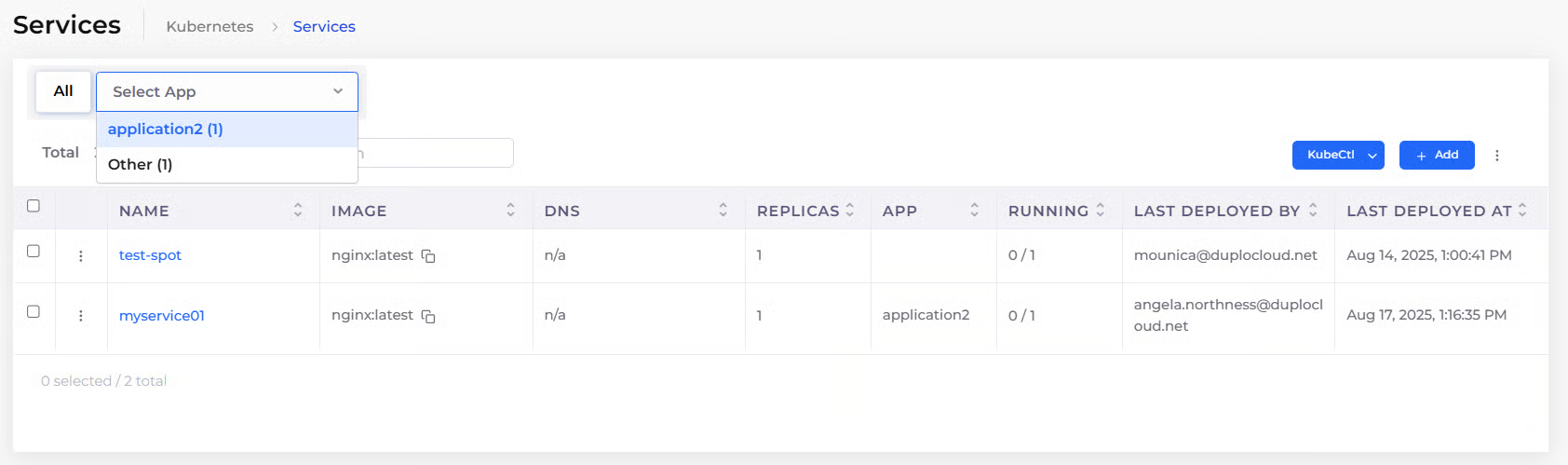
2. Select **All** to view all Services or **Select App** to view Services by **App Name** (this option is only available when one or more Services were created with an App Name).<br>

   <div align="left"><figure><img src="https://2471407984-files.gitbook.io/~/files/v0/b/gitbook-x-prod.appspot.com/o/spaces%2F68cb0s9ce5UIUKWPuYs8%2Fuploads%2FCRCPmldjJk9FzdEznWsZ%2Fimage.png?alt=media&#x26;token=2c747c8e-5860-40e3-a385-e280794d1f6b" alt=""><figcaption><p><strong>Kubernetes - Services</strong> page with the <strong>Select App</strong> list box<br></p></figcaption></figure></div>
3. Select the Service from the **NAME** column. The Service details page displays.
4. Click **Actions** to choose from the following options:

<table data-header-hidden><thead><tr><th width="174.8887939453125"></th><th></th></tr></thead><tbody><tr><td><strong>Edit</strong></td><td>Modify the container configuration.</td></tr><tr><td><strong>Restart</strong></td><td>Stop and then start the container immediately.</td></tr><tr><td><strong>Start</strong></td><td>Start a stopped container.</td></tr><tr><td><strong>Stop</strong></td><td>Stop a running container.</td></tr></tbody></table>

## Starting, Stopping, and Restarting Multiple DuploCloud Services <a href="#id-7-toc-title" id="id-7-toc-title"></a>

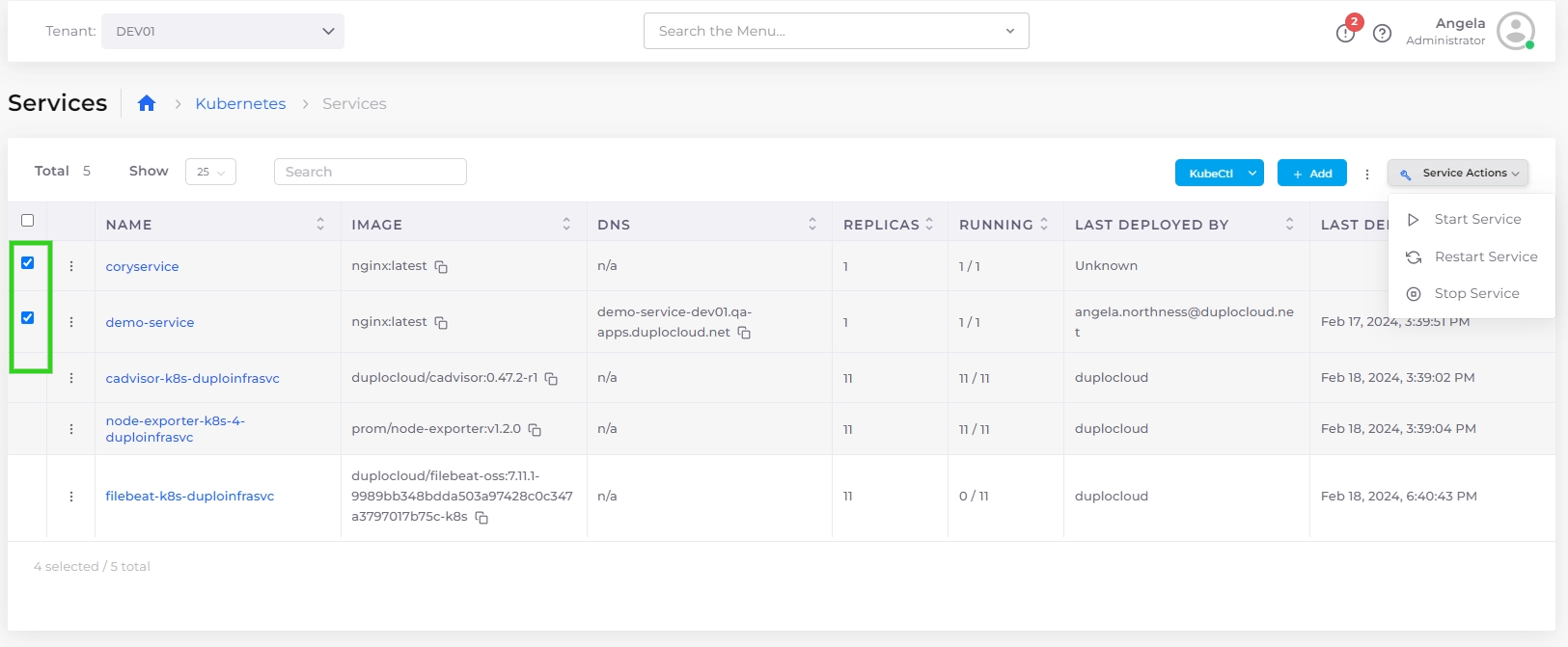
Using the Services page, you can start, stop, and restart multiple services simultaneously.

1. In the DuploCloud Portal, navigate to **Kubernetes** -> **Services**.
2. Use the checkbox column to select the services you want to start or stop.
3. From the **Service Actions** menu, select **Start Service**, **Stop Service**, or **Restart Service.** Your selected services are started, stopped, or restarted.

<figure><img src="https://2471407984-files.gitbook.io/~/files/v0/b/gitbook-x-prod.appspot.com/o/spaces%2F68cb0s9ce5UIUKWPuYs8%2Fuploads%2FLZWtpWEpY6i8xz8Py1ig%2Fscreenshot-nimbusweb.me-2024.02.18-18_40_57.png?alt=media&#x26;token=7c98a9e6-17d7-4624-bc18-8d5857064af1" alt=""><figcaption></figcaption></figure>

## Importing a Native Kubernetes Service <a href="#id-7-toc-title" id="id-7-toc-title"></a>

Using the **Import Kubernetes Deployment** pane, you can add a Service to an existing Kubernetes namespace using Kubernetes YAML.

1. In the DuploCloud Portal, select **Kubernetes -> Services** from the navigation pane.
2. Click **Add**. The **Add Service** page displays.
3. Click the **Import Kubernetes Deployment** button in the upper right. **The Import Kubernetes Deployment** pane displays.
4. Paste the deployment YAML code, as in the example below, into the **Import Kubernetes Deployment** pane.
5. Click **Import**.
6. In the **Add Service** page, click **Next.**
7. Click **Create**. Your Native Kubernetes Service is created.

<figure><img src="https://2471407984-files.gitbook.io/~/files/v0/b/gitbook-x-prod.appspot.com/o/spaces%2F68cb0s9ce5UIUKWPuYs8%2Fuploads%2FMcsvCIyPkgXIpRSTXCP1%2Fscreenshot-nimbusweb.me-2024.02.18-18_42_33.png?alt=media&#x26;token=e3c18c83-922f-407f-982d-16e181d49d83" alt=""><figcaption><p>YAML code for importing a Native Kubernetes Service</p></figcaption></figure>

{% code title="Sample YAML code" %}

```yaml
//apiVersion: apps/v1
kind: Deployment
metadata:
  name: nginx-deployment
  namespace: duploservices-my-tenant
  labels:
    app: nginx
spec:
  replicas: 3
  selector:
    matchLabels:
      app: nginx
  template:
    metadata:
      labels:
        app: nginx
    spec:
      containers:
      - name: nginx1
        image: nginx:1.14.2
        ports:
        - containerPort: 80
```

{% endcode %}

## Advanced EKS Configurations

You can supply advanced configuration options with EKS in the DuploCloud Portal in several ways, including the advanced use cases in this section.

### Enable DuploCloud Master IP access to an EKS Security Group

1. In the DuploCloud Portal, navigate to **Administrator** -> **System Settings**.
2. Click the **System Config** tab.
3. Click **Add**. The **Add Config** pane displays.
4. From the **Config Type** list box, select, **Flags**.
5. From the **Key** list box, select **Block Master VPC CIDR Allow in EKS SG**.<br>

   <div align="left"><figure><img src="https://2471407984-files.gitbook.io/~/files/v0/b/gitbook-x-prod.appspot.com/o/spaces%2F68cb0s9ce5UIUKWPuYs8%2Fuploads%2FHwLPzMAlVl3y4IRSG6ZI%2Fimage.png?alt=media&#x26;token=bec12318-cf28-4e46-b50e-682b1d2ee3dc" alt=""><figcaption><p><strong>Add Config</strong> pane with <strong>Block Master VPC CIDR Allow in EKS SG</strong> setting</p></figcaption></figure></div>
6. From the **Value** list box, select **True**.
7. Click **Submit**. The setting is displayed as **BlockMasterVpcCidrAllowInEksSg** in the **System Config** tab.<br>

   <figure><img src="https://2471407984-files.gitbook.io/~/files/v0/b/gitbook-x-prod.appspot.com/o/spaces%2F68cb0s9ce5UIUKWPuYs8%2Fuploads%2FWJWuQXM1yPrvaZG9jMG1%2Fimage.png?alt=media&#x26;token=85d19a4c-11b8-4caa-ac68-fa47be4e5d96" alt=""><figcaption><p><strong>System Config</strong> tab with <strong>Flag BlockMasterVpcCidrAllowInEksSg</strong> set to <strong>true</strong></p></figcaption></figure>

## Managing Kubernetes Containers

1. You can view and manage Containers from the DuploCloud Portal by navigating to one of two locations:
   * **Tenant-wide view**: Go to **Kubernetes** → **Containers**.
   * **Service-specific view**: Go to **Kubernetes** → **Services**, select the name of the Service, and select the **Containers** tab.
2. Click the menu icon ( <img src="https://2471407984-files.gitbook.io/~/files/v0/b/gitbook-x-prod.appspot.com/o/spaces%2F68cb0s9ce5UIUKWPuYs8%2Fuploads%2FiNwYVMf4fky7ZPl41t38%2FKabab_three_Vertical_dots.png?alt=media&#x26;token=566b1d4e-a9bc-43c8-995a-044ceab9f38b" alt="" data-size="line"> ) for a Container and select from the following options:

<table data-header-hidden><thead><tr><th width="243">Option</th><th>Functionality</th></tr></thead><tbody><tr><td><strong>Logs</strong></td><td>Displays container logs. When you select this option, the Container Logs window displays. Use the <strong>Follow Logs</strong> option (enabled by default) to monitor logging in real-time for a running container. See the graphic below for an example of the Container Logs window.</td></tr><tr><td><strong>State</strong></td><td><p>Displays container state information in a separate window, where you can select between two tabs:</p><ul><li><strong>Container State:</strong> Shows key runtime details such as start time, restart policy, termination grace period, container image, restart count, and current state.</li><li><strong>Details:</strong> Shows the full YAML definition of the container and Pod, including metadata, labels, annotations, volumes, and status conditions.</li></ul></td></tr><tr><td><strong>Container Shell</strong></td><td>Accesses the Container Shell. To access the <strong>Container Shell</strong> option, you must first set up <a href="../../prerequisites/kubectl-shell">Shell access for Docker</a>.</td></tr><tr><td><strong>Host Shell</strong></td><td>Accesses the Host Shell.</td></tr><tr><td><strong>Delete</strong></td><td>Deletes the container.</td></tr></tbody></table>

<figure><img src="https://2471407984-files.gitbook.io/~/files/v0/b/gitbook-x-prod.appspot.com/o/spaces%2F68cb0s9ce5UIUKWPuYs8%2Fuploads%2F31Oe4Ss8us9Hn8brPJ1C%2Fscreenshot-nimbusweb.me-2024.02.18-18_44_56.png?alt=media&#x26;token=0dfeb1c2-ec3f-4d8a-a6d4-d99898722d67" alt=""><figcaption><p><strong>Containers</strong> page displaying defined containers with highlighted Options Menu</p></figcaption></figure>

### Downloading the Kubectl Token and KubeConfig <a href="#id-6-toc-title" id="id-6-toc-title"></a>

DuploCloud provides you with a Just-In-Time (JIT) security token, for fifteen minutes, to access the `kubectl` cluster.

1. In the DuploCloud Portal, select **Administrator** -> **Infrastructure** from the navigation pane.
2. Select the Infrastructure in the **Name** column.
3. Click the **EKS** tab.
4. Copy the temporary **Token** and the **Server Endpoint** (Kubernetes URL) **Values** from the Infrastructure that you created. You can also download the complete configuration by clicking the **Download Kube Config** button.<br>

   <figure><img src="https://2471407984-files.gitbook.io/~/files/v0/b/gitbook-x-prod.appspot.com/o/spaces%2F68cb0s9ce5UIUKWPuYs8%2Fuploads%2FV0qLSPJQTjvaxODrZSJ8%2Fk8s3.png?alt=media&#x26;token=7d64c16b-10dd-47d8-808b-e9fa82d9599b" alt=""><figcaption><p><strong>EKS</strong> tab with <strong>Download KubeConfig</strong> button</p></figcaption></figure>
5. Run the following commands, in a local Bash shell instance:

```shell
> kubectl config --kubeconfig=config-demo set-cluster EKS_CLUSTER --server=[EKS_API_URL] --insecure-skip-tls-verify
```

```shell
> kubectl config --kubeconfig=config-demo set-credentials tempadmin --token=[TOKEN]
```

```shell
> kubectl config --kubeconfig=config-demo set-context EKS --cluster=EKS_CLUSTER --user=tempadmin --namespace=duploservices-[TENANTNAME]
```

```shell
> export KUBECONFIG=config-demo
```

```shell
> kubectl config use-context EKS
```

You have now configured `kubectl` to point and access the Kubernetes cluster. You can apply deployment templates by running the following command:

```shell
> kubectl apply -f nginx.yaml
```

{% code title="nginx.yaml" %}

```yaml
apiVersion: apps/v1
kind: Deployment
metadata:
  name: nginx-deployment-g
  labels:
    app: nginx-deployment-g
spec:
  replicas: 1
  selector:
    matchLabels:
      app: nginx-deployment-g
  template:
    metadata:
      labels:
        app: nginx-deployment-g
    spec:
      nodeSelector:
        tenantname: "duploservices-stgeast1"
      containers:
      - name: nginx
        image: nginx:latest
        ports:
        - containerPort: 80
```

{% endcode %}

If you need security tokens of a longer duration, create them on your own. Secure them outside of the DuploCloud environment.

### Additional Resources

For more detailed instructions and examples related to EKS and container deployments, see:

* [Passing Kubernetes Configs and Secrets](https://docs.duplocloud.com/docs/automation-platform/kubernetes-overview/configs-and-secrets)
* [Downloading and Configuring a Kubectl Token](https://docs.duplocloud.com/docs/automation-platform/kubernetes-overview/kubectl/kubectl-token)
* [Setting Up Docker Registry Credentials](https://docs.duplocloud.com/docs/automation-platform/overview/aws-services/containers/docker-registry-credentials)
* [Adding Pod Toleration Specs to a Container Configuration](https://docs.duplocloud.com/docs/automation-platform/kubernetes-overview/pod-toleration)


---

# Agent Instructions: Querying This Documentation

If you need additional information that is not directly available in this page, you can query the documentation dynamically by asking a question.

Perform an HTTP GET request on the current page URL with the `ask` query parameter:

```
GET https://docs.duplocloud.com/docs/automation-platform/overview/aws-services/containers/eks-containers-and-services.md?ask=<question>
```

The question should be specific, self-contained, and written in natural language.
The response will contain a direct answer to the question and relevant excerpts and sources from the documentation.

Use this mechanism when the answer is not explicitly present in the current page, you need clarification or additional context, or you want to retrieve related documentation sections.