> For the complete documentation index, see [llms.txt](https://docs.duplocloud.com/docs/llms.txt). Markdown versions of documentation pages are available by appending `.md` to page URLs; this page is available as [Markdown](https://docs.duplocloud.com/docs/automation-platform/overview/aws-services/database/rds-database/iam-authentication.md).

# IAM authentication

Authenticate to **MySQL**, **PostgreSQL**, **Aurora MySQL**, **Aurora PostgreSQL**, and **MariaDB** RDS instances using [AWS Identity and Access Management (IAM) database authentication](https://docs.aws.amazon.com/AmazonRDS/latest/UserGuide/UsingWithRDS.IAMDBAuth.html).

Using IAM for authenticating an RDS instance offers the following benefits:

* Network traffic to and from the database is encrypted using Secure Socket Layer (SSL) or Transport Layer Security (TLS).
* Centrally manage access to your database resources, instead of managing access individually for each DB instance.
* For applications running on Amazon EC2 hosts, you can use profile credentials specific to your EC2 instance to access your database, instead of using a password, for greater security.

## Configuring RDS IAM Authentication in DuploCloud

Use the System Config tab to enable IAM authentication before enabling it for a specific RDS instance.

1. In the DuploCloud Portal, navigate to **Administrator** -> **System Settings**.
2. Click the **System Config** tab. The **Add Config** pane displays.
3. From the **Config Type** list box, set **Flags**.
4. From the **Key** list box, select **Enable RDS IAM auth**.
5. From the **Value** list box, select **True**.
6. Click **Submit**. The configuration is displayed in the **System Config** tab.

<div align="left"><figure><img src="/files/fl8oQcnaHrcQMFmom2GY" alt=""><figcaption><p><strong>Add Config</strong> pane with the <strong>Enable RDS IAM auth</strong> <strong>Key</strong></p></figcaption></figure></div>

<div align="left"><figure><img src="/files/pAdYWROUEujX3Dbe2tTx" alt=""><figcaption><p><strong>System Config</strong> tab with <strong>EnableRdsIamAuth</strong> <strong>Key</strong> with <strong>Value</strong> of <strong>true</strong></p></figcaption></figure></div>

## Enabling IAM for an RDS instance

You can also enable IAM for any MySQL, PostgreSQL, and MariaDB instance during RDS creation or by updating the **RDS Settings** after RDS creation.

### Enabling IAM when creating an RDS

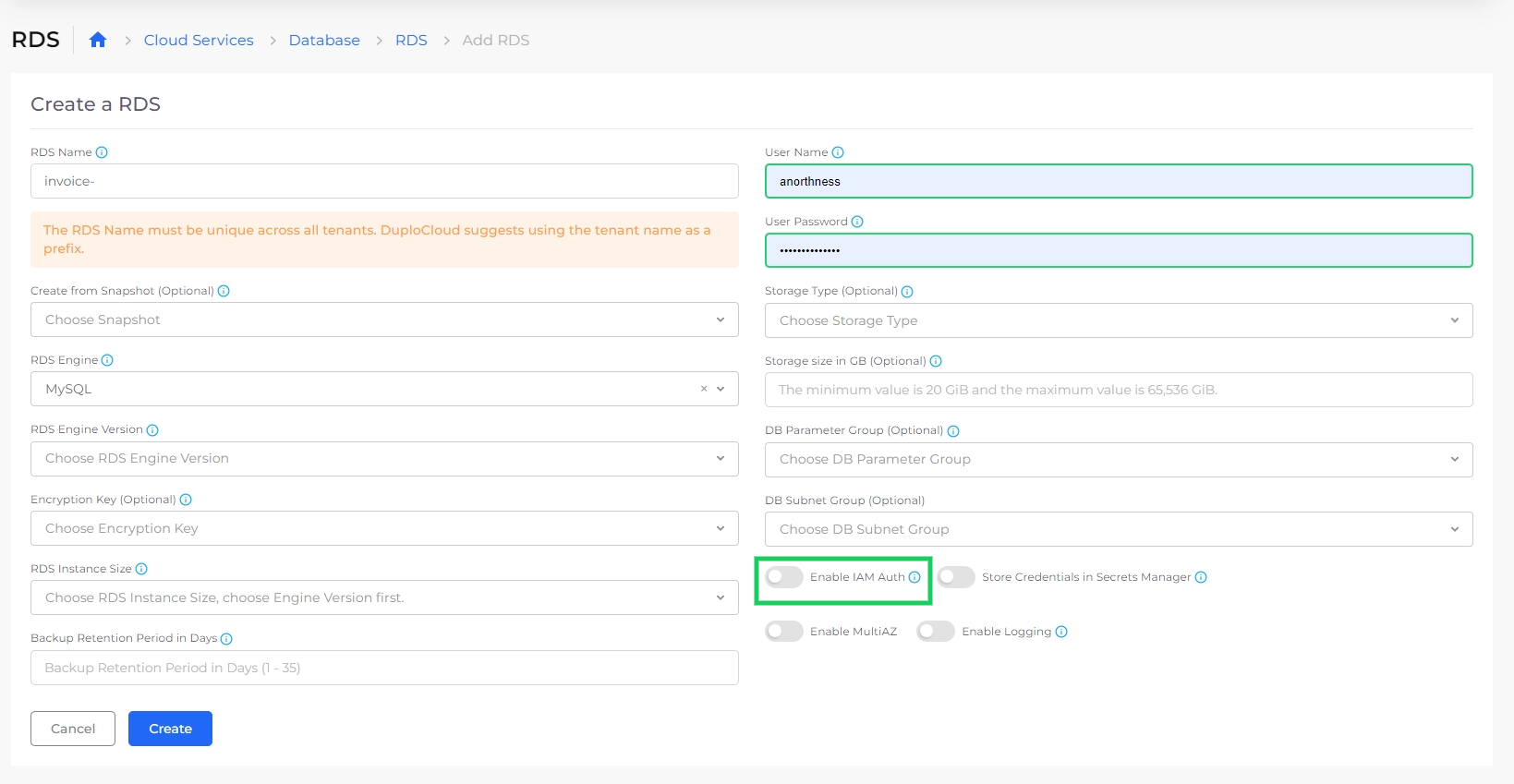
Select the **Enable IAM auth** option when you [create an RDS database](/docs/automation-platform/overview/aws-services/database/rds-database.md#id-0-toc-title).

<figure><img src="/files/IIleCocZxpEb6x309TWM" alt=""><figcaption><p><strong>Create a RDS</strong> page with <strong>Enable IAM Auth</strong> option highlighted</p></figcaption></figure>

### Enabling IAM after RDS creation

1. In the DuploCloud Portal, navigate to **Cloud Services** -> **Database**.
2. In the **RDS** tab, select the database for which you want to enable IAM.
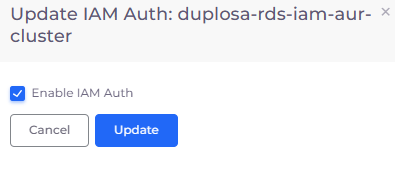
3. Click the **Actions** menu and select **RDS Settings** -> **Update IAM Auth**. The **Update IAM Auth** pane displays.<br>

   <div align="left"><figure><img src="/files/h73I3q3JG2EtgnEwueyB" alt=""><figcaption><p><strong>Actions</strong> menu in <strong>RDS</strong> tab with <strong>RDS Settings</strong></p></figcaption></figure></div>

   <div align="left"><figure><img src="/files/M2lEyyiUy8EvVYrP1tzj" alt=""><figcaption><p><strong>Update IAM Auth</strong> pane</p></figcaption></figure></div>
4. Select **Enable IAM Auth**.
5. Click **Update**.

## Getting an Authentication Token

To download a token which you can use for IAM authentication:

1. In the DuploCloud Portal, navigate to **Cloud Services** -> **Database**.
2. In the **RDS** tab, select the database for which you want to enable IAM.
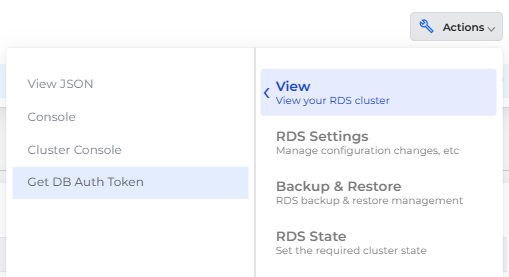
3. Click the **Actions** menu and select **View** -> **Get DB Auth Token**. The **RDS Credentials window** displays.

   <div align="left"><figure><img src="/files/hdvYtHC0OfAMgW41lcdc" alt=""><figcaption><p><strong>Actions</strong> menu in <strong>RDS</strong> tab with <strong>View</strong> -> <strong>Get DB Auto Token</strong> option</p></figcaption></figure></div>
4. In the **RDS Credentials** window, click the Copy Icon ( <img src="/files/5261gHN3Bqsotzdm7Y86" alt="" data-size="line"> ) to copy the **Endpoint**, **Username**, and **Password** to your clipboard.
5. Click **Close** to dismiss the window.

{% hint style="danger" %}
**PostgreSQL / Aurora PostgreSQL**

To log in using an IAM token, the PostgreSQL database user must explicitly have IAM permission. Without this, the login will fail with `FATAL: password authentication failed`. Run the following commands to allow the `duplo_jit` to successfully log in using IAM tokens.

1. Log in to the database using the **Master Username**.
2. Run the following SQL commands:

```sql
CREATE USER "duplo_jit";
GRANT rds_iam TO "duplo_jit";
```

{% endhint %}


---

# Agent Instructions
This documentation is published with GitBook. GitBook is the documentation platform designed so that both humans and AI agents can read, navigate, and reason over technical content effectively. Learn more at gitbook.com.

## Querying This Documentation
If you need additional information that is not directly available in this page, you can query the documentation dynamically by asking a question.

Perform an HTTP GET request on the current page URL with the `ask` query parameter, and the optional `goal` query parameter:

```
GET https://docs.duplocloud.com/docs/automation-platform/overview/aws-services/database/rds-database/iam-authentication.md?ask=<question>&goal=<endgoal>
```

`ask` is the immediate question: it should be specific, self-contained, and written in natural language.
`goal` is optional and describes the broader end goal you are ultimately trying to accomplish on behalf of the user. GitBook uses it to tailor the answer towards what is most useful for that goal.

The response will contain a direct answer to the question and relevant excerpts and sources from the documentation.

Use this mechanism when the answer is not explicitly present in the current page, you need clarification or additional context, or you want to retrieve related documentation sections.