# EMR Serverless

Amazon EMR Serverless is a serverless option in [Amazon EMR](https://aws.amazon.com/emr/)[ ](https://aws.amazon.com/emr/serverless/)that makes it easy for data analysts and engineers to run open-source big data analytics frameworks without configuring, managing, and scaling clusters or servers. You get all the features and benefits of Amazon EMR without needing experts to plan and manage clusters.

In this procedure, we [create an EMR studio](#creating-an-emr-studio), [create and clone a Spark application](#creating-and-cloning-a-spark-application), then [create and clone a Spark job](#creating-and-cloning-a-spark-job) to run the application with EMR Serverless.

{% hint style="info" %}
DuploCloud EMR Serverless supports Hive, Spark, and custom ECR images.
{% endhint %}

## Creating an EMR Studio

To create EMR Serverless applications you first need to create an EMR studio.

1. In the DuploCloud Portal, navigate to **Cloud Services** -> **Analytics**.
2. Click the **EMR Serverless** tab.
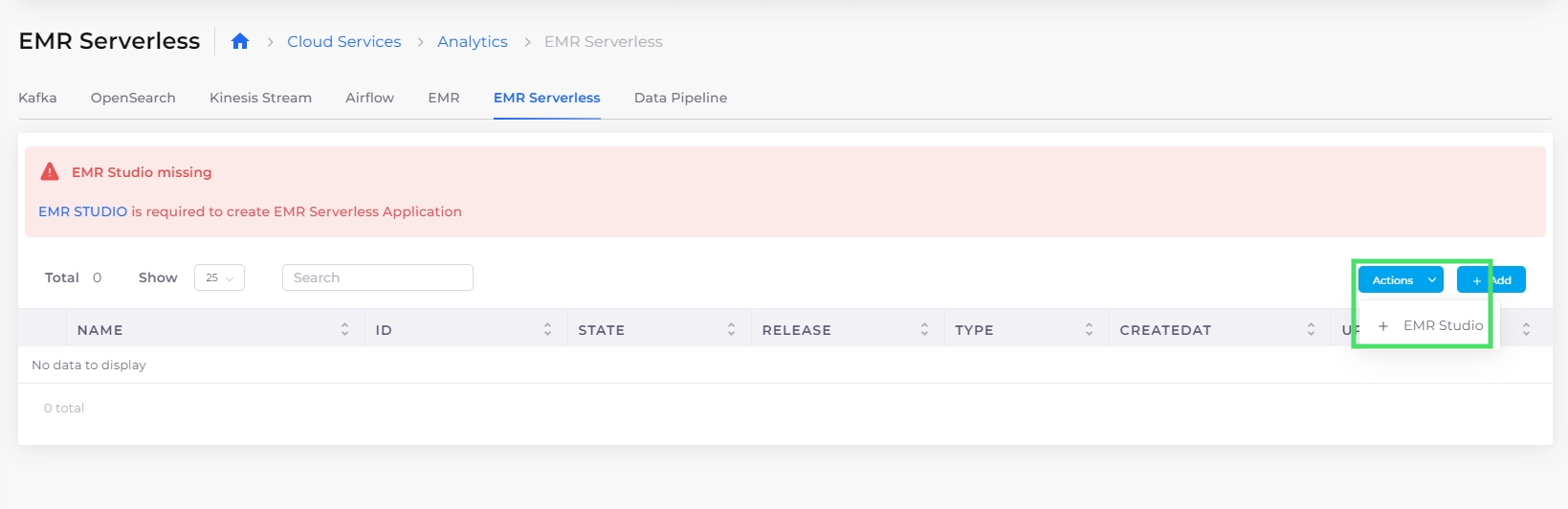
3. Click **EMR Studio**.<br>

   <figure><img src="https://2471407984-files.gitbook.io/~/files/v0/b/gitbook-x-prod.appspot.com/o/spaces%2F68cb0s9ce5UIUKWPuYs8%2Fuploads%2F5eUBW9gnVyyEq6xtyauX%2Fscreenshot-nimbusweb.me-2024.02.19-18_12_28.png?alt=media&#x26;token=afe1e0a4-103a-4a28-aa7e-8ab694e704bd" alt=""><figcaption><p><strong>Actions</strong> menu with <strong>EMR Studio</strong> option highlighted on <strong>EMR Serverless</strong> tab</p></figcaption></figure>
4. Click **Add**. The **Add EMR Studio** pane displays.\
   \
   ![](https://2471407984-files.gitbook.io/~/files/v0/b/gitbook-x-prod.appspot.com/o/spaces%2F68cb0s9ce5UIUKWPuYs8%2Fuploads%2FeH6ZNKotLf6ZngdKeGPp%2Fimage.png?alt=media\&token=51fa2598-efd9-4aff-a8c0-06c800bee182)<br>
5. Enter a **Description** of the **Studio** for reference.
6. Select an [S3 Bucket](https://docs.duplocloud.com/docs/automation-platform/overview/aws-services/s3-bucket) that you previously defined from the **Logs Default S3 Bucket** list box.
7. Optionally, in the **Logs Default S3 Folder** field, specify the path to which logs are written.
8. Click **Create**. The EMR Studio is created and displayed.
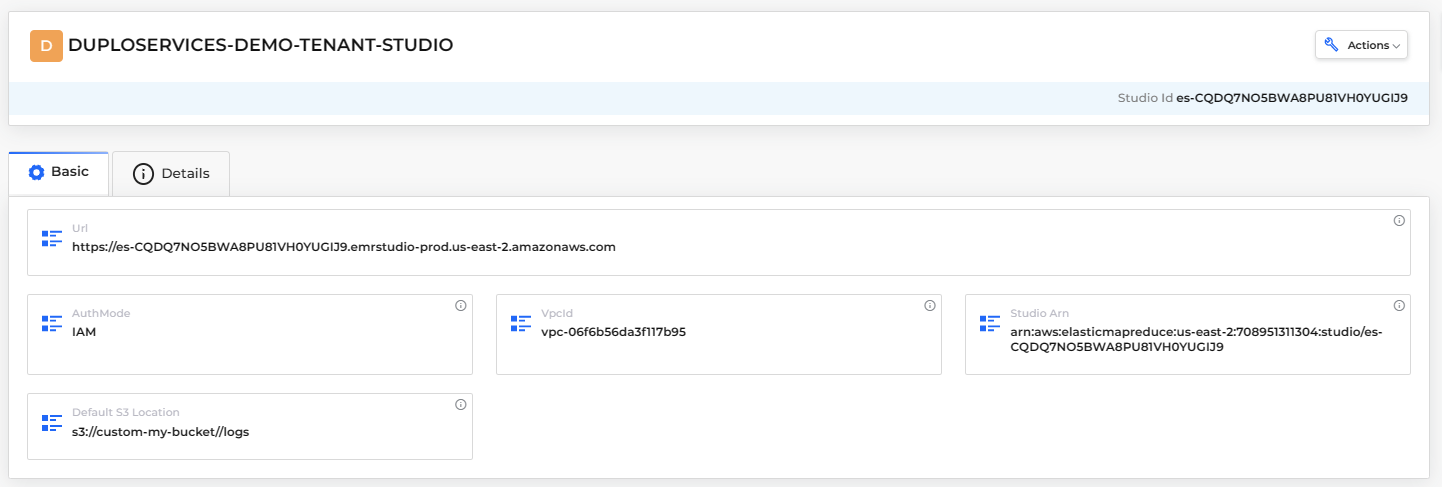
9. Select the EMR Studio name in the **Name** column. The **EMR Studio** page displays. View the **Details** of the EMR Serverless Studio.<br>

   <div align="left"><figure><img src="https://2471407984-files.gitbook.io/~/files/v0/b/gitbook-x-prod.appspot.com/o/spaces%2F68cb0s9ce5UIUKWPuYs8%2Fuploads%2F2XlQBlsTIao8EGgNGonD%2Fimage.png?alt=media&#x26;token=b6ca6763-ae53-46c3-9e56-df71d888693b" alt=""><figcaption><p>EMR Studio page with <strong>Basic</strong> and <strong>Details</strong> tabs.</p></figcaption></figure></div>
10. Navigate to the **EMR Serverless** tab and click the menu (<img src="https://2471407984-files.gitbook.io/~/files/v0/b/gitbook-x-prod.appspot.com/o/spaces%2F68cb0s9ce5UIUKWPuYs8%2Fuploads%2FiNwYVMf4fky7ZPl41t38%2FKabab_three_Vertical_dots.png?alt=media&#x26;token=566b1d4e-a9bc-43c8-995a-044ceab9f38b" alt="" data-size="line">) icon in the **Actions** column. Use the **Actions** Menu to delete the studio if needed, as well as to view the studio in the AWS Console.<br>
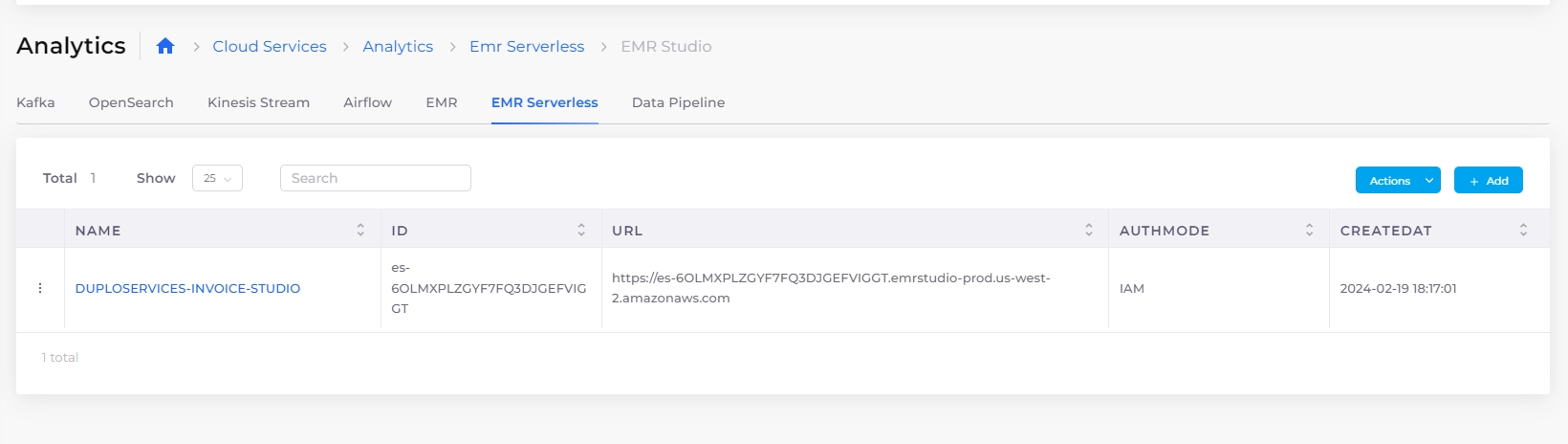
    <figure><img src="https://2471407984-files.gitbook.io/~/files/v0/b/gitbook-x-prod.appspot.com/o/spaces%2F68cb0s9ce5UIUKWPuYs8%2Fuploads%2FJnqUk2mckPvJJX19PpOC%2Fscreenshot-nimbusweb.me-2024.02.19-18_17_15.png?alt=media&#x26;token=21f35ea1-e808-4093-b4a2-bb0551be4f11" alt=""><figcaption><p>EMR Serverless Studio Actions Menu</p></figcaption></figure>

Now that the EMR Studio exists, you create an application to run analytics with it.\
The DuploCloud Portal supports `Hive` and `Spark` applications. In this example, we create a Spark Application.

## Creating an EMR Serverless application

1. In the **EMR Serverless** tab, click **Add**. A configuration wizard launches with five steps for you to complete.
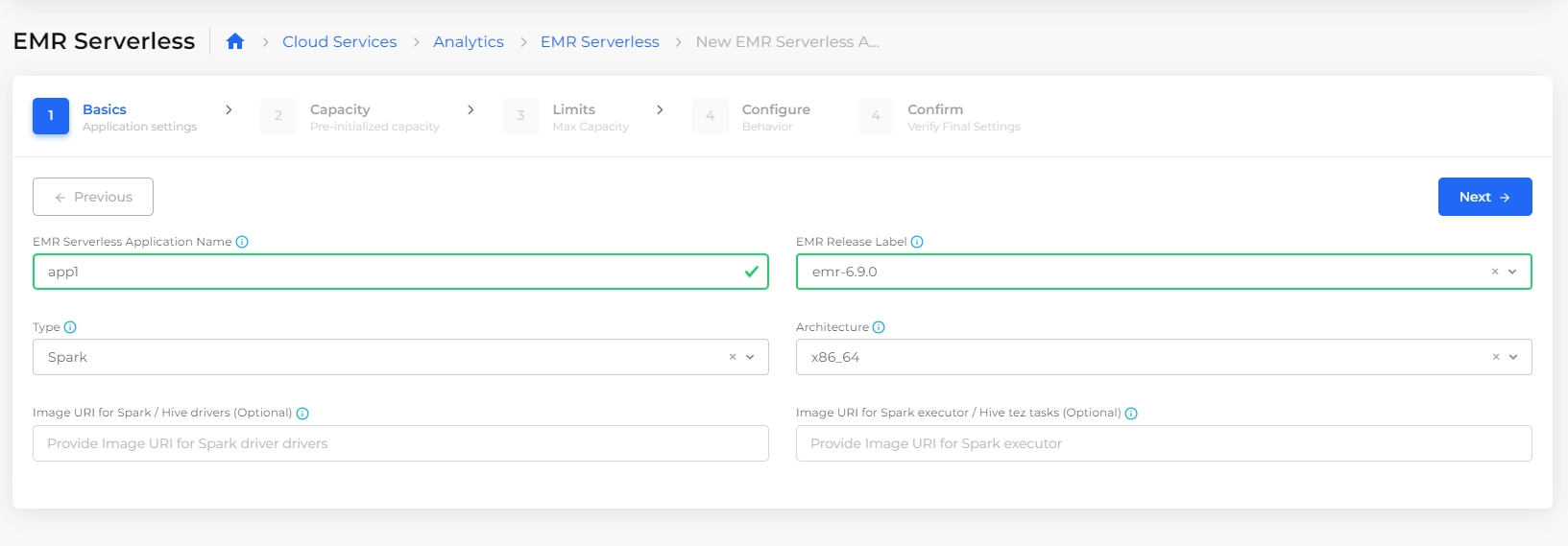
2. Enter the **EMR Serverless Application Name** (`app1`, in this example) and the **EMR Release Label** in the **Basics** step. DuploCloud prepends the string **DUPLOSERVICES-*****TENANT\_NAME*** to your chosen application name, where ***TENANT\_NAME*** is your Tenant's name. Click **Next**.<br>

   <figure><img src="https://2471407984-files.gitbook.io/~/files/v0/b/gitbook-x-prod.appspot.com/o/spaces%2F68cb0s9ce5UIUKWPuYs8%2Fuploads%2FbKnbkxxDe1aDWGKECiX3%2Fscreenshot-nimbusweb.me-2024.02.19-18_19_56.png?alt=media&#x26;token=413bceb7-d939-468e-83e8-97b6b7a7de9d" alt=""><figcaption><p><strong>EMR Serverless</strong> configuration wizard <strong>Basics</strong> step</p></figcaption></figure>
3. Accept the defaults for the **Capacity**, **Limits**, and **Configure** pages by clicking **Next** on each page until you reach the **Confirm** page.
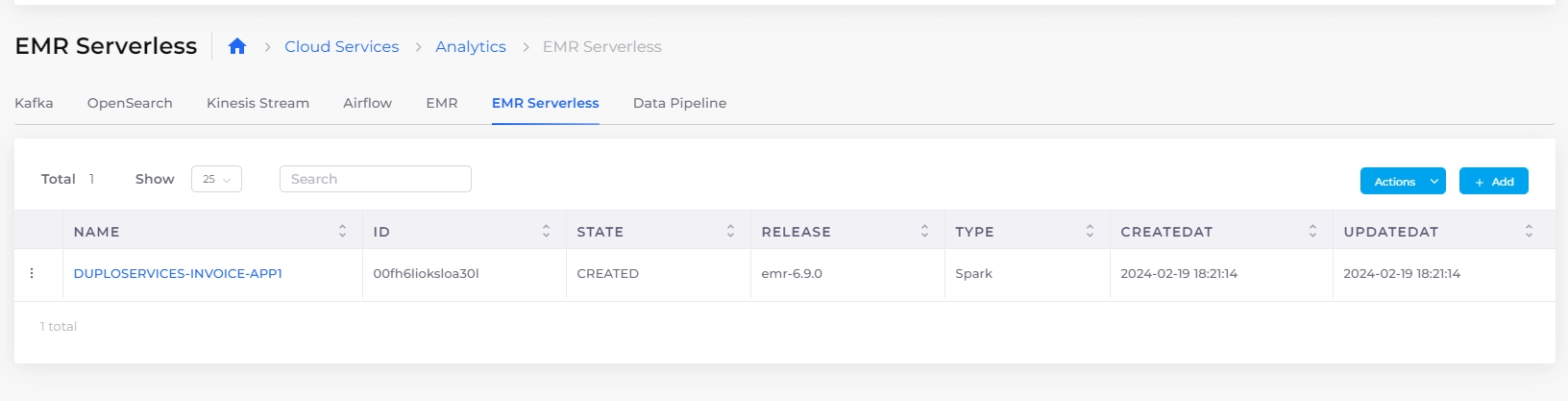
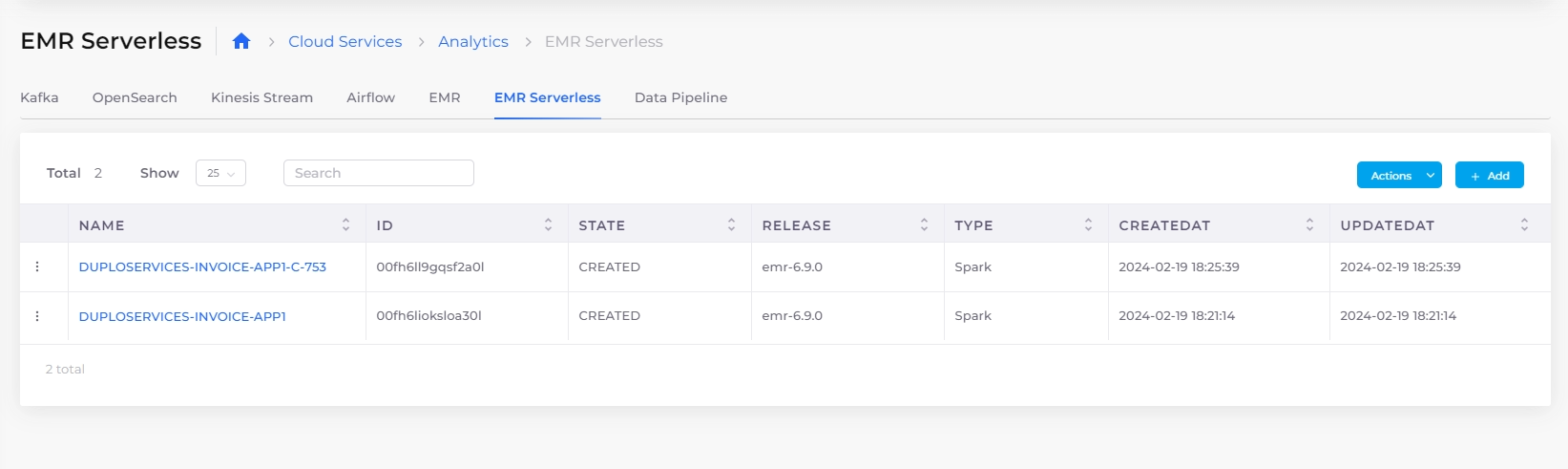
4. On the **Confirm** page, click **Submit**. Your created application instance (`DUPLOSERVICES-DEFAULT-APP1`, in this example) is displayed in the **EMR Serverless** tab with the **State** of **CREATED**.<br>

   <figure><img src="https://2471407984-files.gitbook.io/~/files/v0/b/gitbook-x-prod.appspot.com/o/spaces%2F68cb0s9ce5UIUKWPuYs8%2Fuploads%2Fv7NeEoDk80vKkGT0Tzu0%2Fscreenshot-nimbusweb.me-2024.02.19-18_21_24.png?alt=media&#x26;token=55134083-771c-4408-ba4e-1c763f1c7a44" alt=""><figcaption><p><strong>EMR Serverless</strong> tab with <strong>CREATED</strong> application instance</p></figcaption></figure>

Before you begin to create a job to run the application, clone an instance of it to run.

### Cloning an application

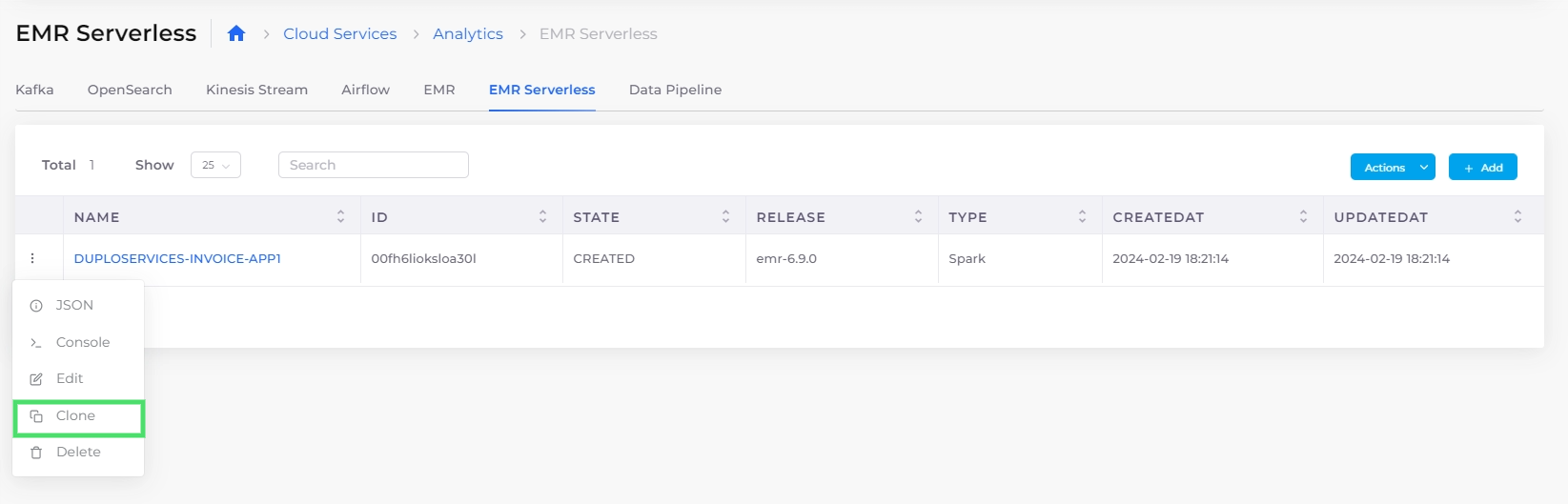
1. On the EMR Serverless page, click the menu (<img src="https://2471407984-files.gitbook.io/~/files/v0/b/gitbook-x-prod.appspot.com/o/spaces%2F68cb0s9ce5UIUKWPuYs8%2Fuploads%2FiNwYVMf4fky7ZPl41t38%2FKabab_three_Vertical_dots.png?alt=media&#x26;token=566b1d4e-a9bc-43c8-995a-044ceab9f38b" alt="" data-size="line">) icon and select **Clone**.<br>

   <figure><img src="https://2471407984-files.gitbook.io/~/files/v0/b/gitbook-x-prod.appspot.com/o/spaces%2F68cb0s9ce5UIUKWPuYs8%2Fuploads%2FsEzhndc2Aai16Wfbjnzz%2Fscreenshot-nimbusweb.me-2024.02.19-18_24_11.png?alt=media&#x26;token=0eb5894b-a7f2-4a92-9ba8-86c20b0b3221" alt=""><figcaption><p><strong>Actions</strong> menu with <strong>Clone</strong> option on <strong>EMR Serverless</strong> tab</p></figcaption></figure>
2. Make any desired changes while advancing through the **Basics**, **Capacity**, **Limits**, and **Configure** steps, clicking **Next** to advance the wizard to the next page. DuploCloud gives your cloned app a unique generated name by default (**app1-c-833**, in this example).
3. On the **Confirm** page, click **Submit**. In the EMR Serverless tab, you should now have two application instances in the **CREATED State**: your original application instance (**DUPLOSERVICES-DEFAULT-APP1)** and the cloned application instance (**DUPLOSERVICES-DEFAULT-APP1-C-833)**.<br>

   <figure><img src="https://2471407984-files.gitbook.io/~/files/v0/b/gitbook-x-prod.appspot.com/o/spaces%2F68cb0s9ce5UIUKWPuYs8%2Fuploads%2F0Q6HmZIN112FSzVyZonL%2Fscreenshot-nimbusweb.me-2024.02.19-18_25_52.png?alt=media&#x26;token=9d485781-f016-4ec1-a0df-90421bae86cc" alt=""><figcaption><p>Original application instance and cloned instance in EMR Serverless tab</p></figcaption></figure>

## Creating a job

You have created and cloned the Spark application. Now you must create and clone a job to run it in EMR Serverless. In this example, we create a Spark job.

{% hint style="info" %}
If you are new to Spark, use the Info Tips (blue <img src="https://2471407984-files.gitbook.io/~/files/v0/b/gitbook-x-prod.appspot.com/o/spaces%2F68cb0s9ce5UIUKWPuYs8%2Fuploads%2FO7ayxbT9sjsKolP9ukdv%2Fimage.png?alt=media&#x26;token=a3683f99-932b-401a-af1f-e5d25117614e" alt="" data-size="line"> icon) when entering data in the EMR Serverless configuration wizard steps below.
{% endhint %}

1. Select the application instance that you previously cloned. This instance (**DUPLOSERVICES-DEFAULT-APP1-C-833**, in this example) has a **STATE** of **CREATED**.
2. Click **Add**. The configuration wizard launches.
3. In the **Basics** step, enter the **EMR Serverless RunJob Name** (**jobfromcloneapp**, in this example).<br>
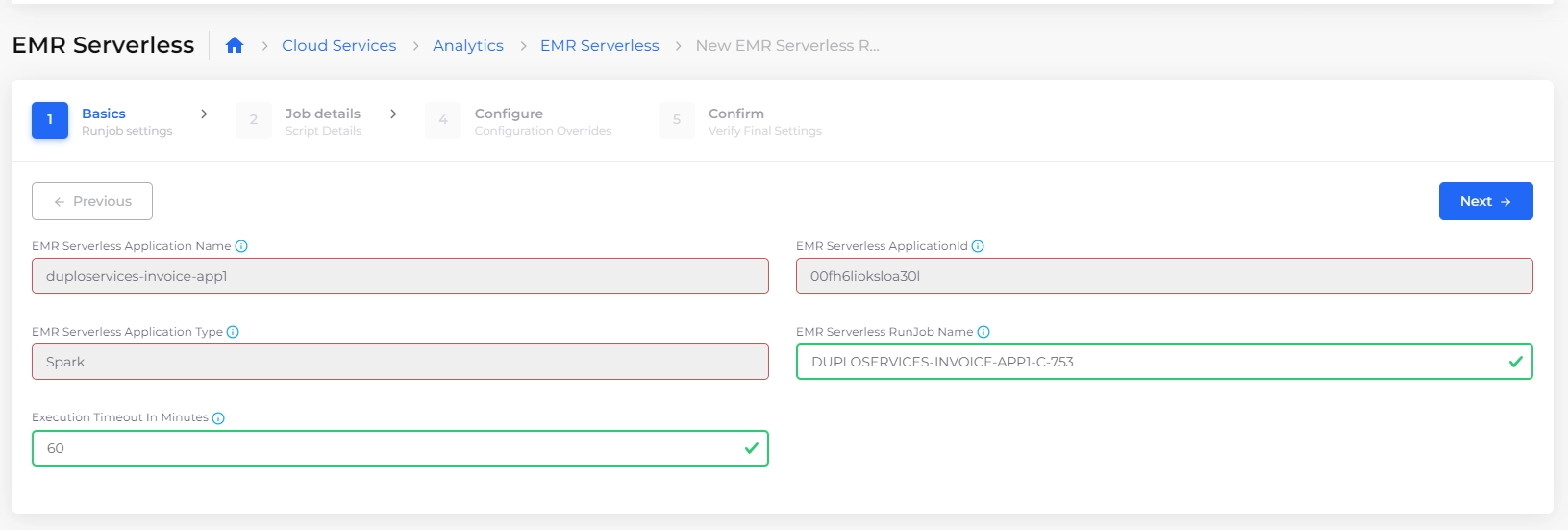
   <figure><img src="https://2471407984-files.gitbook.io/~/files/v0/b/gitbook-x-prod.appspot.com/o/spaces%2F68cb0s9ce5UIUKWPuYs8%2Fuploads%2FBMFtCLk8EYOO136PmtA5%2Fscreenshot-nimbusweb.me-2024.02.19-18_31_32.png?alt=media&#x26;token=6178b7ba-a69b-492c-9b81-c12c86b2117e" alt=""><figcaption><p><strong>EMR Serverless</strong> configuration wizard <strong>Basics</strong> step with <strong>EMR Serverless RunJob Name</strong> field</p></figcaption></figure>
4. Click **Next**.
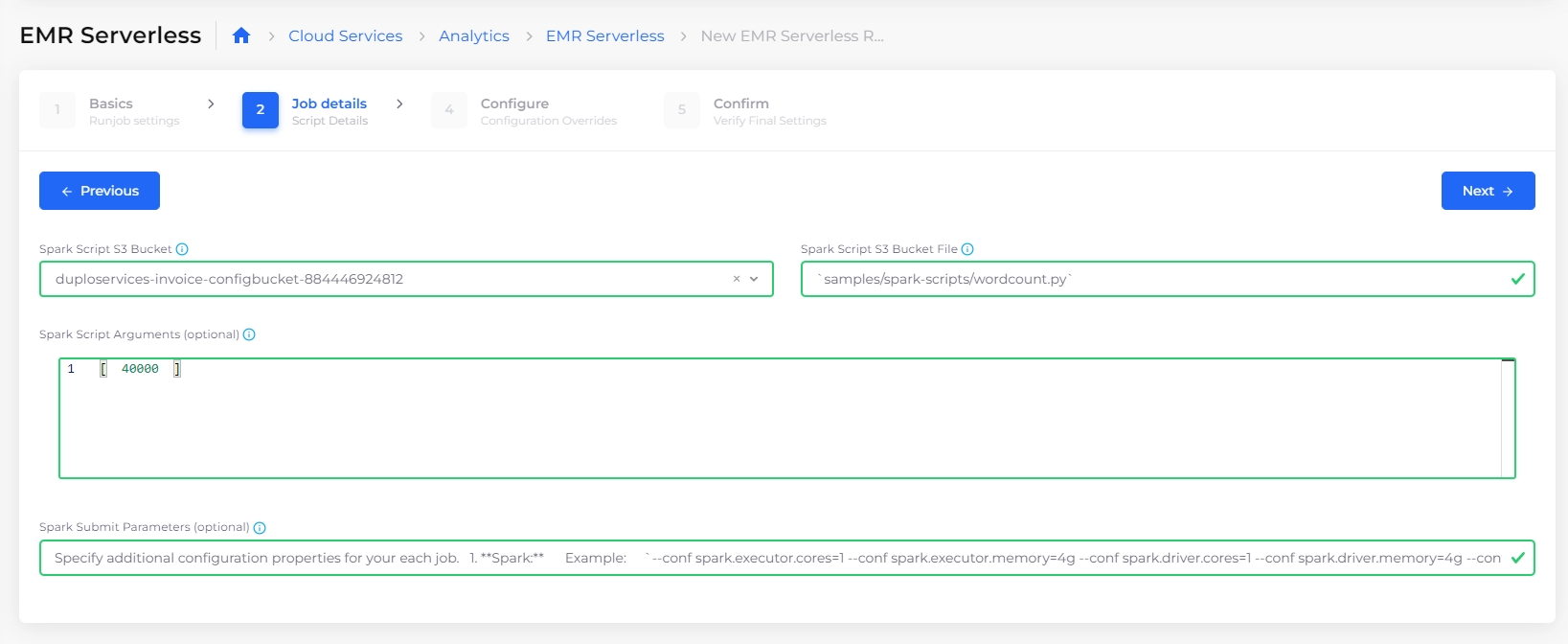
5. In the **Job details** step, select a previously-defined **Spark Script S3 Bucket.**
6. In the **Spark Script** [**S3 Bucket**](https://docs.duplocloud.com/docs/automation-platform/overview/aws-services/s3-bucket) **File** field, enter a path to define where your scripts are stored.
7. Optionally, in the **Spark Scripts** field, you can specify an array of arguments passed to your JAR or Python script. Each argument in the array must be separated by a comma (**,**). In the example below, a single argument of **"40000"** is entered.
8. Optionally, in the **Spark Submit Parameters** field, you can specify Spark **`--conf`** parameters. See the example below.<br>

   <figure><img src="https://2471407984-files.gitbook.io/~/files/v0/b/gitbook-x-prod.appspot.com/o/spaces%2F68cb0s9ce5UIUKWPuYs8%2Fuploads%2F1sGZ40QNeBmzDxRyQz3E%2Fscreenshot-nimbusweb.me-2024.02.19-18_36_15.png?alt=media&#x26;token=83daa5a6-c767-4069-98f5-4e0a431a0d8e" alt=""><figcaption><p><strong>EMR Serverless</strong> configuration wizard <strong>Job details</strong> step with <strong>Spark Script Arguments</strong> and <strong>Spark Submit Parameters</strong> fields</p></figcaption></figure>
9. Click **Next**.
10. Make any desired changes in the **Configure** step and click **Next** to advance the wizard to the **Confirm** page.
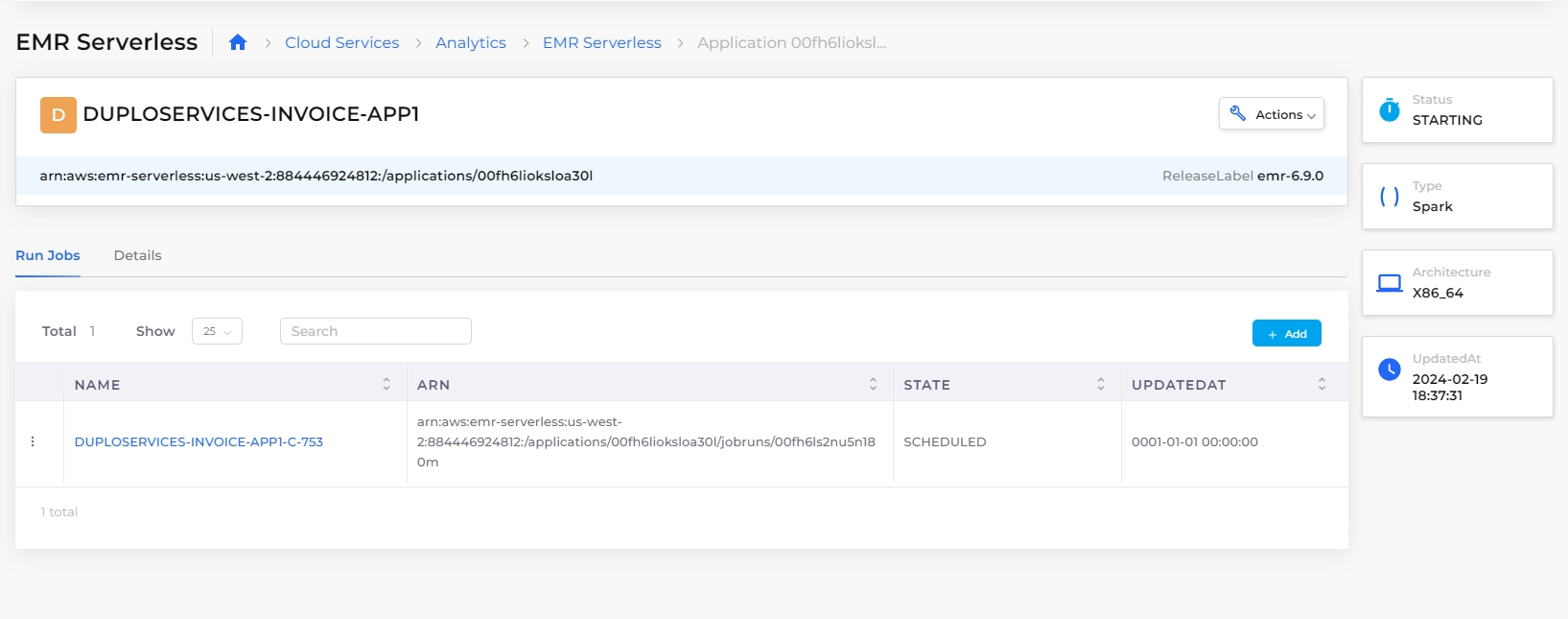
11. On the **Confirm** page, click **Submit**. In the **Run Jobs** tab for your cloned application, your job **JOBFROMCLONEAPP** displays.<br>

    <figure><img src="https://2471407984-files.gitbook.io/~/files/v0/b/gitbook-x-prod.appspot.com/o/spaces%2F68cb0s9ce5UIUKWPuYs8%2Fuploads%2FLakgj5DQlomrrjTMsbC0%2Fscreenshot-nimbusweb.me-2024.02.19-18_37_39.png?alt=media&#x26;token=b83479ac-2ad6-4f79-8187-b5fcccdaa8be" alt=""><figcaption><p><strong>Run Jobs</strong> tab for cloned application instance <strong>DUPLOSERVICES-DEFAULT-APP1-C-753</strong></p></figcaption></figure>

## Monitoring running jobs

Observe the status of your jobs and makes changes, if needed. In this example, we monitor the Spark jobs created and cloned in this procedure.

1. In the DuploCloud Portal, navigate to **Cloud Services** -> **Analytics**.
2. Click the **EMR Serverless** tab.
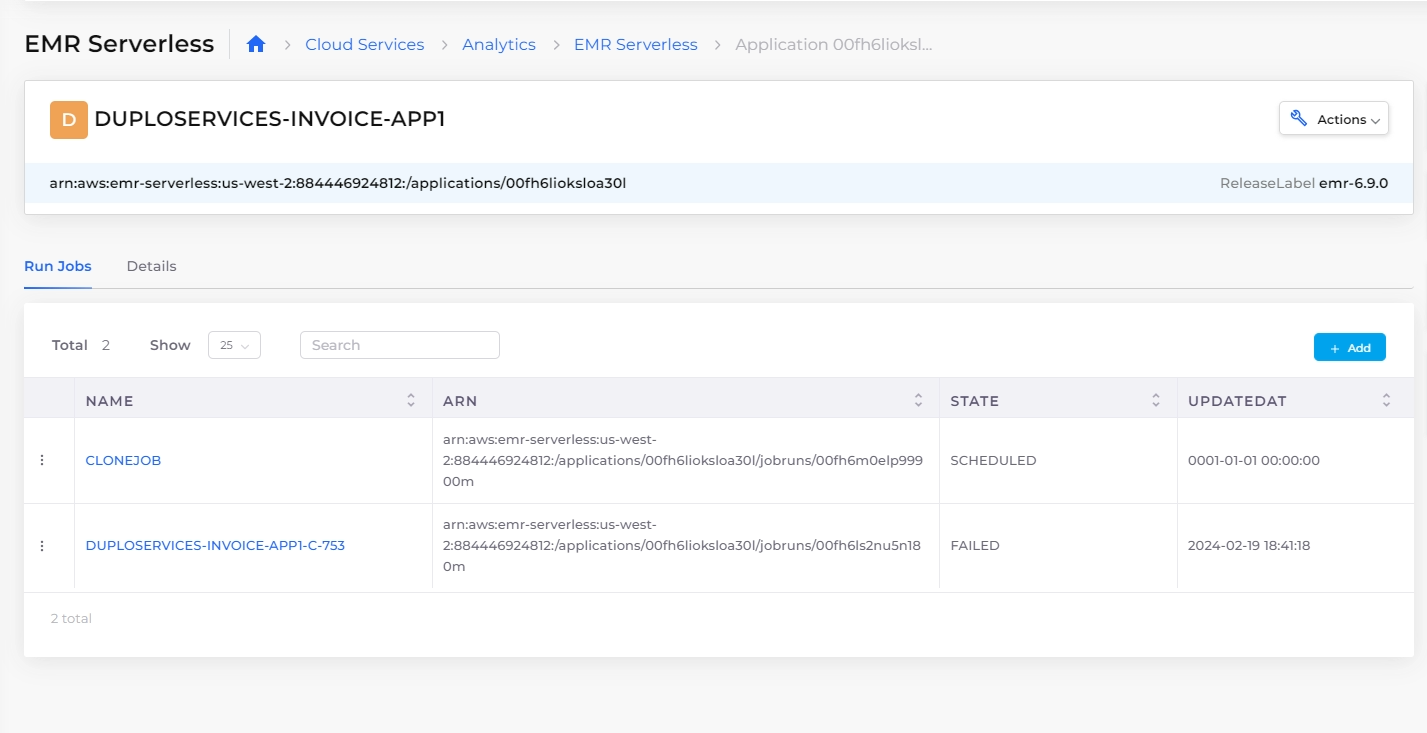
3. Select the application instance that you want to monitor. The **Run Jobs** tab displays run jobs connected to the application instance and each job's **STATE**.<br>

   <figure><img src="https://2471407984-files.gitbook.io/~/files/v0/b/gitbook-x-prod.appspot.com/o/spaces%2F68cb0s9ce5UIUKWPuYs8%2Fuploads%2F44iqjgvlTxThuVSEEd19%2Fscreenshot-nimbusweb.me-2024.02.19-18_45_22.png?alt=media&#x26;token=10e857f8-5c5c-4cf4-bfbf-1d3bafb3db61" alt=""><figcaption><p><strong>Run Jobs</strong> tab with 2 jobs in various <strong>STATE</strong>s</p></figcaption></figure>
4. Using the **Actions** menu, you can view the **Console**, **Start**, **Stop**, **Edit**, **Clone** or **Delete** jobs. You can also click the **Details** tab to view configuration details.


---

# Agent Instructions: Querying This Documentation

If you need additional information that is not directly available in this page, you can query the documentation dynamically by asking a question.

Perform an HTTP GET request on the current page URL with the `ask` query parameter:

```
GET https://docs.duplocloud.com/docs/automation-platform/overview/aws-services/emr-serverless.md?ask=<question>
```

The question should be specific, self-contained, and written in natural language.
The response will contain a direct answer to the question and relevant excerpts and sources from the documentation.

Use this mechanism when the answer is not explicitly present in the current page, you need clarification or additional context, or you want to retrieve related documentation sections.