# IoT (Internet of Things)

Connect and manage billions of devices with AWS IoT, per Tenant. Collect, store, and analyze IoT data for industrial, consumer, commercial, and automotive workloads within DuploCloud.

{% hint style="info" %}
Use [Just-In-Time access](/docs/automation-platform/overview/use-cases/jit-access.md) to provision devices in your IoT.
{% endhint %}

## Enabling IoT for a Tenant

1. In the DuploCloud Portal, navigate to **Administrator** -> **Tenants**.
2. Select your Tenant in the **Name** column.
3. Click the **Settings** tab.
4. Click **Add**. The **Add Tenant Feature** pane displays.<br>

   <div align="left"><figure><img src="/files/9vfU4fmHWcxM4TZnUDWG" alt=""><figcaption><p><strong>Add Tenant Feature</strong> pane with <strong>Enable AWS IoT</strong> feature selected</p></figcaption></figure></div>
5. From the **Select Feature** list box, select **Enable AWS IoT** and **Enable**.
6. Click **Add**. It takes approximately five minutes to enable IoT.
7. Navigate to **Cloud Services** -> **IoT**. The IoT **Things** page displays.

<figure><img src="/files/sJRlNiBrqS1UVRY68S1a" alt=""><figcaption><p>IoT <strong>Things</strong> page</p></figcaption></figure>

## Creating IoT Things

1. In the DuploCloud Portal, navigate to **Cloud Services** -> **IoT**.
2. Click the **Things** tab.
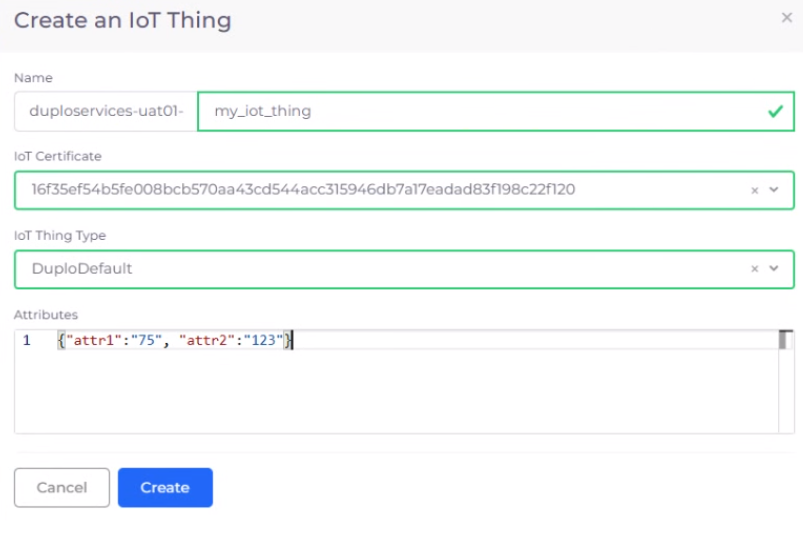
3. Click **Add**. The **Create an IoT Thing** pane displays.<br>

   <div align="left"><figure><img src="/files/LPyN6eKUFw6YymCtS5sA" alt="" width="563"><figcaption><p><strong>Create an IoT Thing</strong> pane with <strong>AttributesACtions</strong></p></figcaption></figure></div>
4. In the editable portion of the **Name** field, enter a Thing name.
5. From the **IoT Certificate** list box, select an IoT Certificate.
6. From the **IoT Thing Type** list box, select the Thing type that you want to create.
7. In the **Attributes** field, add Thing Attributes in quotes, separated by a comma (**,**).
8. Click **Create**. Your IoT Thing is created and displayed.

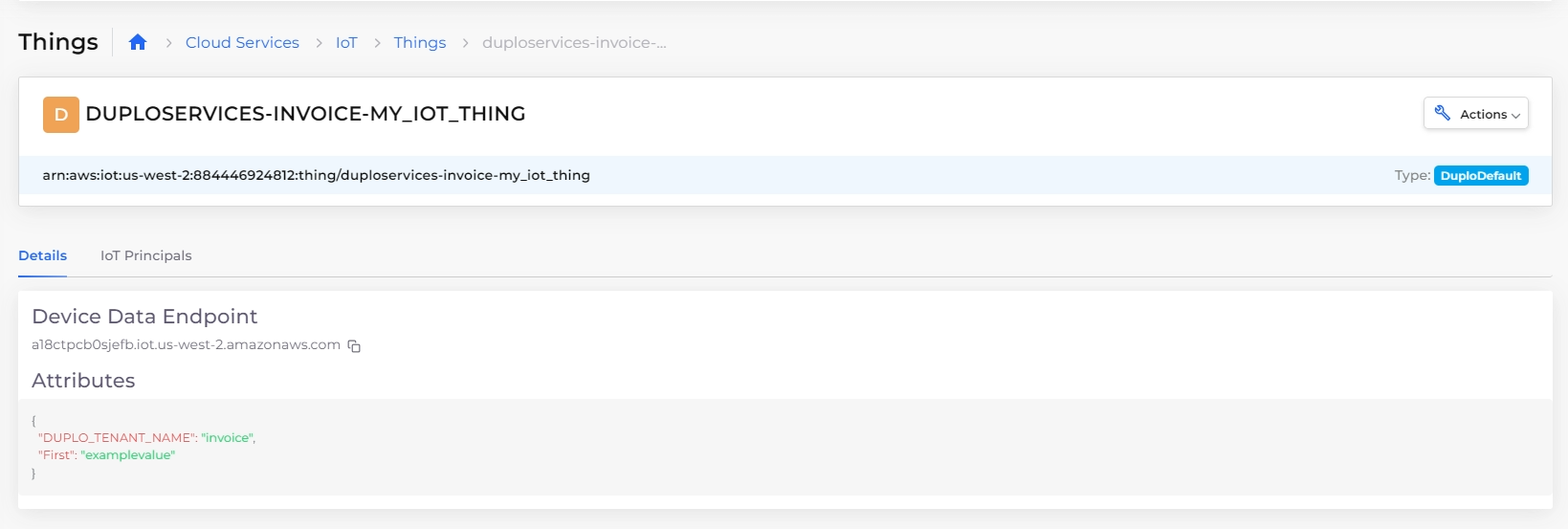
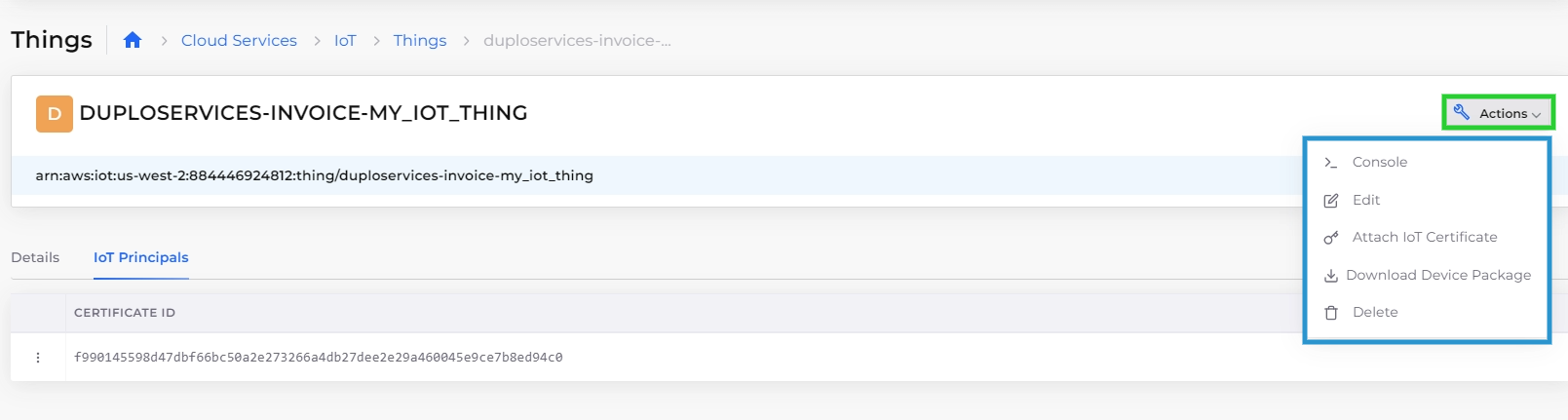
Select the Thing to view **Details** and **IoT Principals** (certificate information) for the Thing. Use the **Action** menu to **Edit** or **Delete** the Thing, **Attach IoT Certificate**, and **Download Device Package**.

<figure><img src="/files/QTB8S93TXiMpQf3mtIhY" alt=""><figcaption><p><strong>Details</strong> and <strong>IoT Principals</strong> tabs on IoT <strong>Things</strong> page</p></figcaption></figure>

<figure><img src="/files/PH96RwSKNFzDUNPwtnNG" alt=""><figcaption><p><strong>Actions</strong> menu on IoT <strong>Things</strong> page</p></figcaption></figure>

## Attach a certificate to a Thing

1. In the DuploCloud Portal, navigate to **Cloud Services** -> **IoT**.
2. Click the **Things** tab.
3. [Add a certificate](#adding-a-certificate) if needed.
4. Select the Thing to which you want to attach a certificate from the **Name** column.
5. Click the Actions menu and select **Attach IoT Certificate**. The **Attach an IoT Certificate** pane displays.
6. From the **IoT Certificate** list box, select an IoT certificate to attach to the Thing.
7. Click **Attach**.

## Download the Device Package for a Thing

1. In the DuploCloud Portal, navigate to **Cloud Services -> IoT**.
2. Click the **Things** tab.
3. Select the Thing to which you want to attach a certificate from the **Name** column.
4. Click the **Actions** menu and select **Download Device Package**. The **Download IoT Device Package** window displays.<br>

   <div align="left"><figure><img src="/files/b8tbhQQ6Cjil9HMaoZHR" alt=""><figcaption></figcaption></figure></div>
5. From the **IoT Certificate** list box, select the IoT certificate associated with the Thing's Device Package.
6. Click **Download**.

## Certificate management

Add, update, or manage an IoT certificate with the following procedures.

### Adding a certificate

1. In the DuploCloud Portal, navigate to **Cloud Services** -> **IoT**.
2. Click the **Certificates** tab.
3. Click **Add**. The **Create an IoT Certificate** pane displays.<br>

   <div align="left"><figure><img src="/files/1sFjHakJ7VQIODmlldU2" alt=""><figcaption><p><strong>Create an IoT Certificate</strong> pane</p></figcaption></figure></div>
4. Select **Activate the Certificate** and click **Create**. The certificate displays.

### Updating a certificate

1. In the DuploCloud Portal, navigate to **Cloud Services** -> **IoT**.
2. Click the **Certificates** tab. The available certificates are displayed and listed by **ID**.
3. In the row for the certificate you want to update, click the **Actions** menu ( <img src="/files/7DagHksotNef8625xoXr" alt="" data-size="line"> ) and select **Edit**. The **Update an IoT Certificate** pane displays.<br>

   <div align="left"><figure><img src="/files/g5paHhAoJtVSR2K8Z0tn" alt=""><figcaption></figcaption></figure></div>
4. From the **Status** list box, select the new status of the certificate.
5. Click **Update**.

### Manage a certificate using AWS Console

1. In the DuploCloud Portal, navigate to **Cloud Services** -> **IoT**.
2. Click the **Certificates** tab. Available certificates are displayed and listed by **ID**.
3. In the row for the certificate you want to update, click the menu (<img src="/files/7DagHksotNef8625xoXr" alt="" data-size="line">) icon in the **Actions** column.
4. Select **Console**. The AWS Console launches so that you can manage your certificate using AWS.<br>
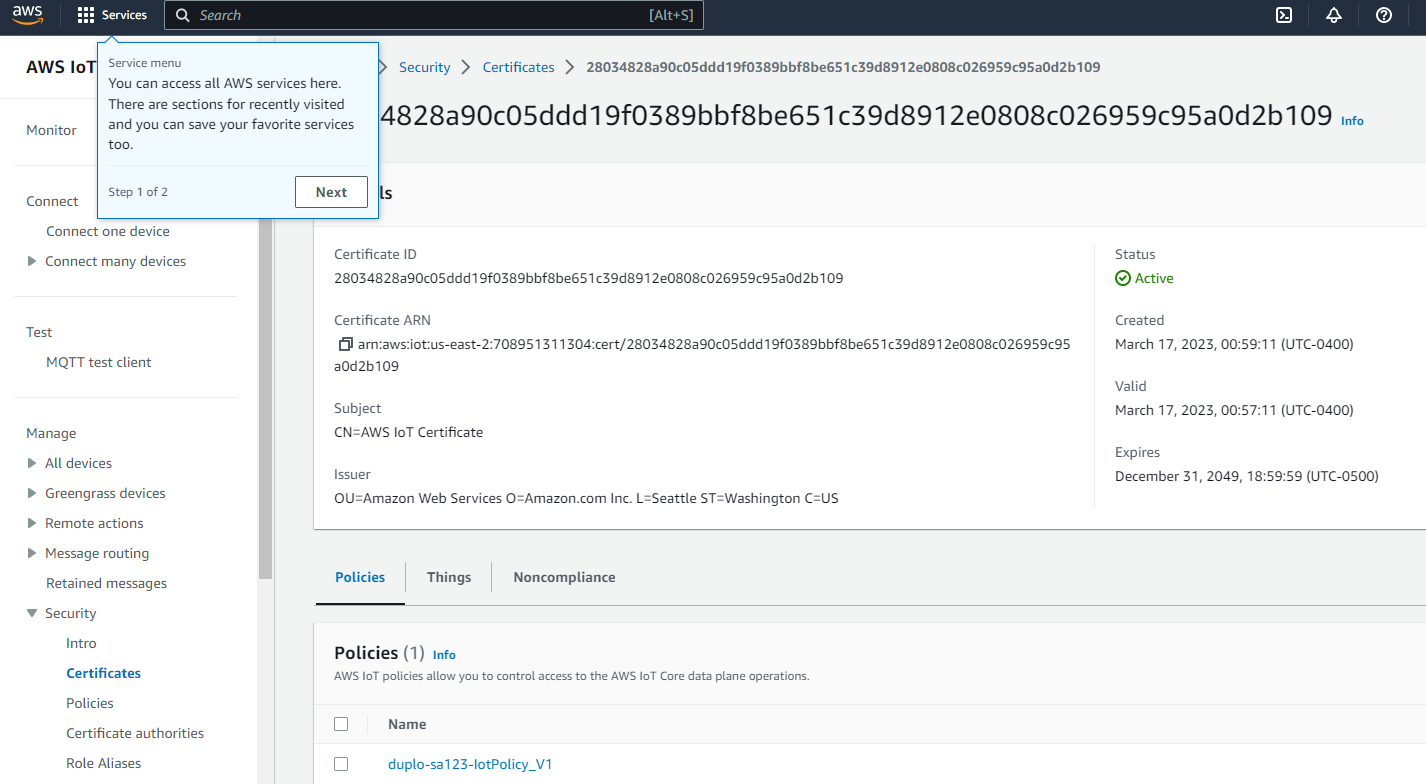
   <figure><img src="/files/wmkRhHdWySwl0Omg7GQY" alt=""><figcaption><p>AWS Console for managing certificates</p></figcaption></figure>

## Using IoT Topic Rules

Topic Rules are SQL-based rules that select data from message payloads and send data to other services, such as Amazon S3, Amazon DynamoDB, and AWS Lambda. Define a Rule to invoke a Lambda function when invoking an AWS or third-party service.

To learn more about IoT Topic Rules and how you define and manage them, see the [AWS documentation](https://docs.aws.amazon.com/iot/latest/developerguide/iot-rules.html).

### Adding IoT Topic Rules

1. In the DuploCloud Portal, navigate to **Cloud Services -> IoT**.
2. Click the **Topic Rules** tab.
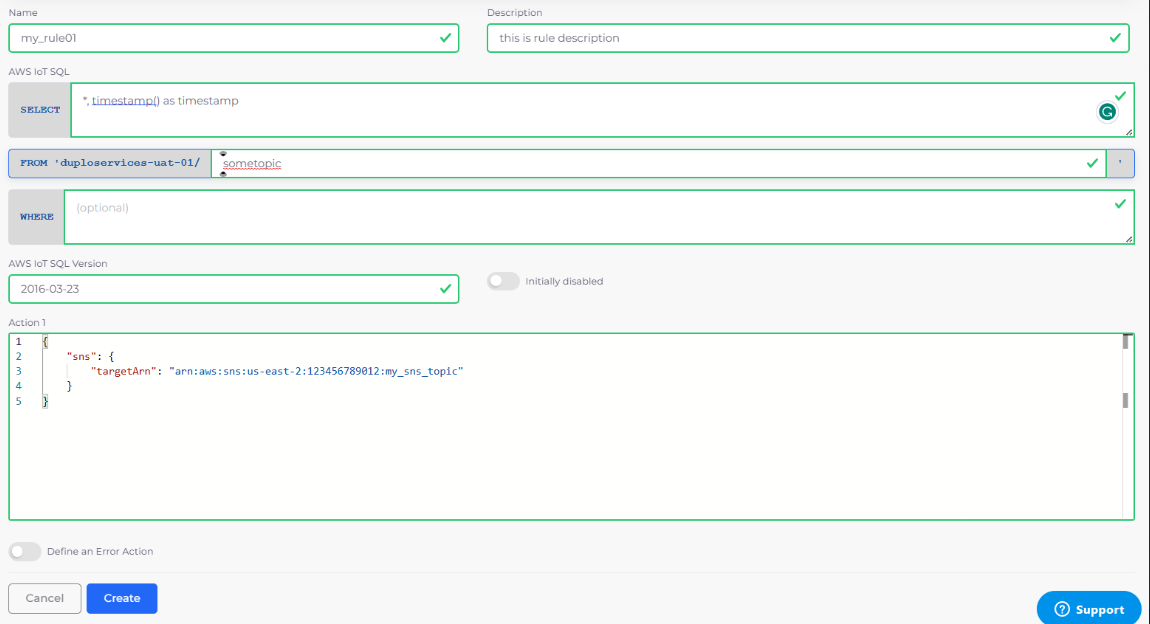
3. Click **Add**. The **Add** Topic Rules page displays.<br>

   <div align="left"><figure><img src="/files/FKyDTaWXmKnNmd7eDXbB" alt=""><figcaption><p><strong>Add</strong> Topic Rules page</p></figcaption></figure></div>
4. In the **Name** field, enter a Topic Rule name.
5. Add a meaningful description of what the rule does in the **Description** field.
6. Define the rule by completing the fields in the **AWS IoT SQL** and **AWS IoT SQL Version** areas. Select **Define an Error Action** if the rule pertains to error management.
7. Click **Create**. Your rule is defined and displayed in the **Topic Rules** tab.

<figure><img src="/files/sYHZwNWzbcj3FKkM95XH" alt=""><figcaption><p>An IoT Topic Rule in the <strong>Topic Rules</strong> tab</p></figcaption></figure>

### Viewing a Topic Rule

View the details of a rule by selecting the rule from the **Topic Rules** tab Name column. The **Details** tab displays the rule description. The **Actions** tab displays the SQL-based rule(s).

<figure><img src="/files/kuuNyJXHjbPMZuxhXOMF" alt=""><figcaption><p>Topic Rule <strong>Details</strong> tab</p></figcaption></figure>

<figure><img src="/files/oMYZOXpj58xLmRRlWkvE" alt=""><figcaption><p>Topic Rule <strong>Actions</strong> tab</p></figcaption></figure>

### Editing a Topic Rule

In the **Topic Rules** tab, edit a Topic Rule by clicking the **Actions** menu ( <img src="/files/7DagHksotNef8625xoXr" alt="" data-size="line"> ) in the row listing your Topic Rule **Name**, and selecting **Edit**.
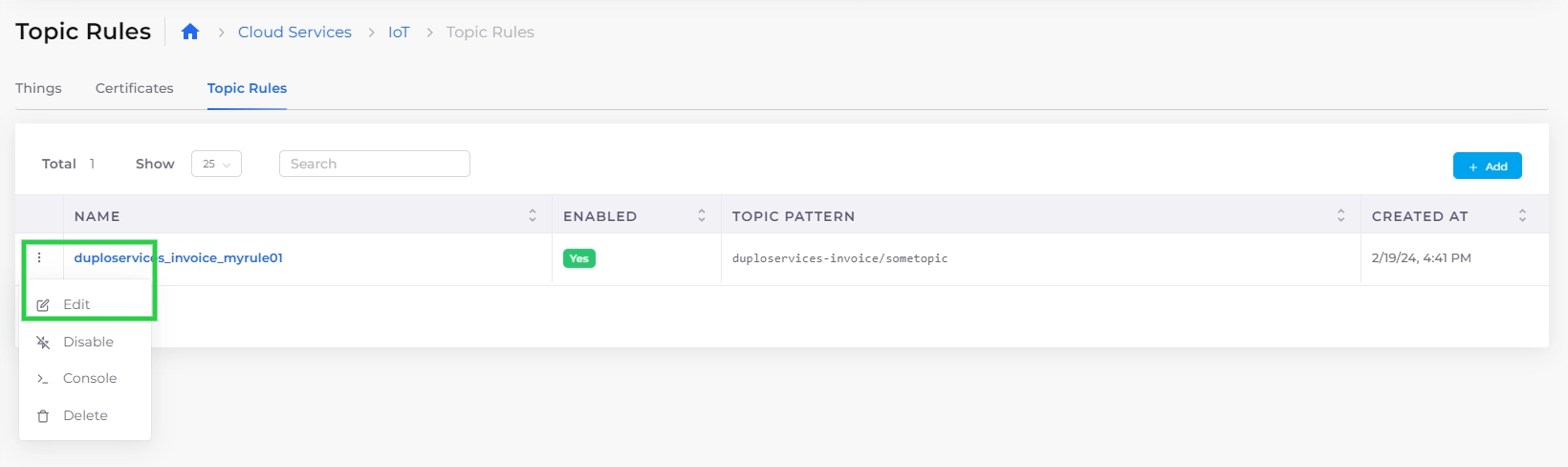
<figure><img src="/files/OnCdnZHl5znSIdin2SDI" alt=""><figcaption><p><strong>Actions</strong> menu with <strong>Edit</strong> option on <strong>Topic Rules</strong> tab</p></figcaption></figure>


---

# Agent Instructions: Querying This Documentation

If you need additional information that is not directly available in this page, you can query the documentation dynamically by asking a question.

Perform an HTTP GET request on the current page URL with the `ask` query parameter:

```
GET https://docs.duplocloud.com/docs/automation-platform/overview/aws-services/iot-internet-of-things.md?ask=<question>
```

The question should be specific, self-contained, and written in natural language.
The response will contain a direct answer to the question and relevant excerpts and sources from the documentation.

Use this mechanism when the answer is not explicitly present in the current page, you need clarification or additional context, or you want to retrieve related documentation sections.