# Connect to the VPN

DuploCloud integrates natively with OpenVPN by provisioning VPN users in the Duplocloud Portal. As a DuploCloud user, you can access resources in the private network by connecting to the VPN with the OpenVPN client.

{% hint style="info" %}
The OpenVPN Access Server only forwards traffic destined for resources in the DuploCloud-managed private networks. Traffic accessing other resources on the internet does not pass through the tunnel.
{% endhint %}

## Obtaining VPN Credentials

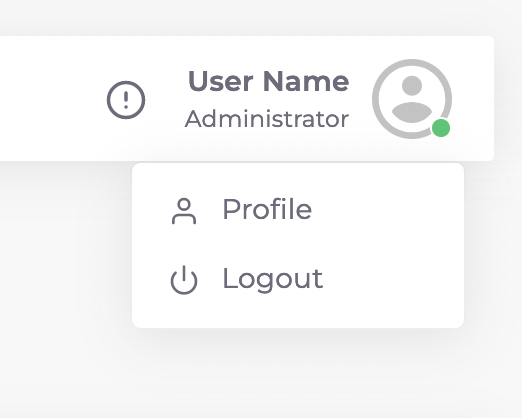
VPN credentials are listed on your user profile page in the DuploCloud Portal. It can be accessed by clicking the user icon (<img src="/files/Yj3rYboyUkWARiJ1WXTZ" alt="" data-size="line">) and selecting **Profile**.

<div align="left"><figure><img src="/files/aY35AXt7TCPvjeNk6bS2" alt=""><figcaption><p>The user menu accessible from the user icon in the upper right</p></figcaption></figure></div>

## Setting up the OpenVPN User Profile and Client App

1. Click on the **VPN URL** link in the **VPN Details** section of your user profile. Modern browsers will call the link unsafe since it uses a self-signed certificate. Make the necessary selections to proceed.
2. Log into the OpenVPN Access Server user portal using the username and password from the **VPN Details** section of your DuploCloud user profile page.

<div align="left"><figure><img src="/files/ZAyTgvF6gBn463xm2Tev" alt="" width="375"><figcaption><p>OpenVPN Access Server login screen</p></figcaption></figure></div>

3. Click on the **OpenVPN Connect Recommended for your device** icon to install the OpenVPN Connect app for your local machine.<br>

<div align="left"><figure><img src="/files/SMurCBNBCRg84eRUWzO5" alt="" width="375"><figcaption><p>The OpenVPN Access Server pane</p></figcaption></figure></div>

4. Navigate to your downloads folder, open the OpenVPN Connect file you downloaded in the previous step, and follow the prompts to finish the installation.
5. In the **OpenVPN access server** dialog box, click on the blue **Yourself (user-locked profile)** link to download your OpenVPN user profile.
6. Navigate to your **Downloads** folder and click on the **.ovpn** file downloaded in the previous step. The **Onboarding Tour** dialog box displays.
7. In the **Onboarding Tour** dialog box, click the **>** button twice. Click **Agree** and **OK** as needed to proceed to the **Import .ovpn profile** dialog box, and click **OK**.

<div align="left"><figure><img src="/files/bNZVCmORMhgCKLckGwe9" alt="" width="375"><figcaption><p>The <strong>Import .ovpn profile</strong> dialog box</p></figcaption></figure></div>

8. Click **OK**, and select **Connect after import**. Click **Add** in the upper right. If prompted to enter a password, use the password in the **VPN Profile** area of your user profile page in the DuploCloud Portal. You are now connected to the VPN.


---

# Agent Instructions: Querying This Documentation

If you need additional information that is not directly available in this page, you can query the documentation dynamically by asking a question.

Perform an HTTP GET request on the current page URL with the `ask` query parameter:

```
GET https://docs.duplocloud.com/docs/automation-platform/overview/prerequisites/connect-to-the-vpn.md?ask=<question>
```

The question should be specific, self-contained, and written in natural language.
The response will contain a direct answer to the question and relevant excerpts and sources from the documentation.

Use this mechanism when the answer is not explicitly present in the current page, you need clarification or additional context, or you want to retrieve related documentation sections.
