# EC2 Snapshots

EC2 snapshots provide point-in-time backups of virtual machine volumes for AWS-based hosts, allowing you to protect data and recover from issues such as misconfigurations or disk failures. You can create and manage snapshots for EC2-based hosts directly from the DuploCloud Portal.

## Creating an EC2 Snapshot

1. In the DuploCloud Portal, navigate to **Cloud Services** → **Hosts**.
2. Select the **EC2** tab.
3. From the **NAME** column, select the Host you want to backup.
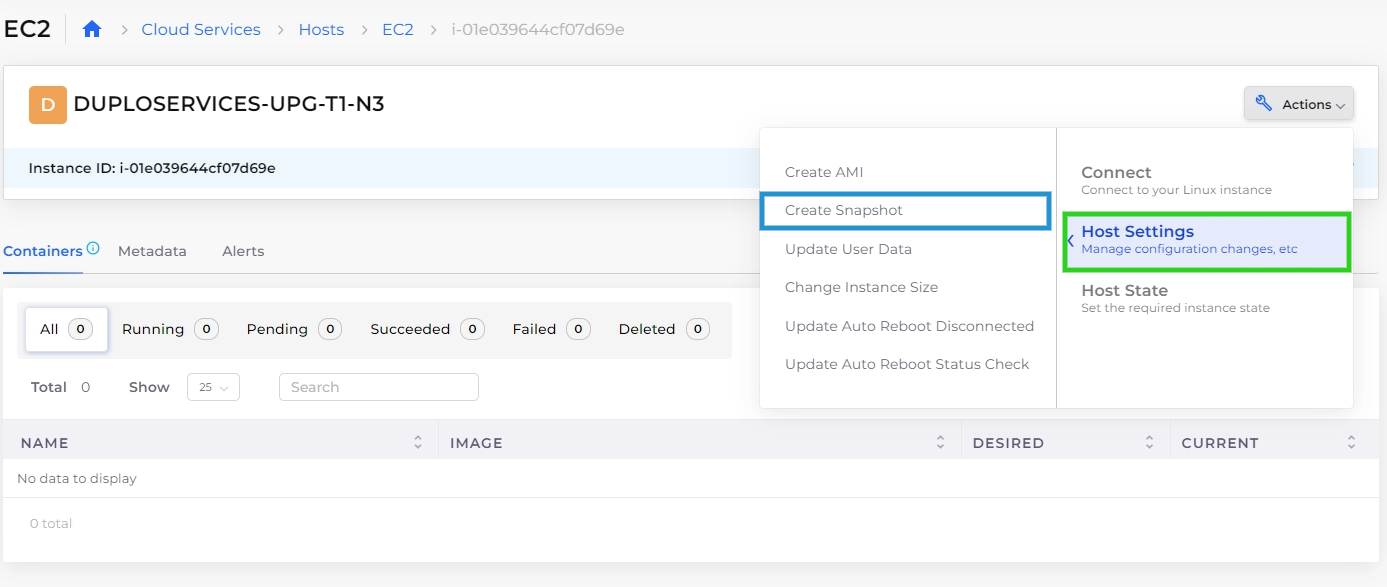
4. Click **Actions** → **Host Settings** → **Create Snapshot**.<br>

   <div align="left"><figure><img src="https://2471407984-files.gitbook.io/~/files/v0/b/gitbook-x-prod.appspot.com/o/spaces%2F68cb0s9ce5UIUKWPuYs8%2Fuploads%2FqCIUhLvKOPmml4TbM3Nk%2Fscreenshot-nimbusweb.me-2024.02.18-14_42_51.png?alt=media&#x26;token=39c089f2-7213-4aba-9dbd-ece9cdeb83d0" alt=""><figcaption><p><strong>Create Snapshot</strong> option on the <strong>EC2 Hosts</strong> page</p></figcaption></figure></div>
5. Click **Confirm** to confirm that you want to create the snapshot.

## Managing EC2 Snapshots

View and manage your EC2 snapshots in DuploCloud.

1. From the DuploCloud Portal, navigate to **Cloud Services** → **Hosts**.
2. Select the **EC2** tab.
3. Click on name of the EC2 host you want to inspect in the **NAME** column.
4. Select the **Snapshots** tab. A list of all snapshots for that host displays, showing details such as Snapshot ID, creation date, and description.
5. Click the menu icon (<img src="https://2471407984-files.gitbook.io/~/files/v0/b/gitbook-x-prod.appspot.com/o/spaces%2F68cb0s9ce5UIUKWPuYs8%2Fuploads%2F3TXbyVvPiycUBQpQx9Kn%2Fmenu%20icon.avif?alt=media&#x26;token=55024f48-40dc-4515-9830-85e77dd6c635" alt="" data-size="line">) next to a snapshot, and select from the following options:
   * **View JSON**: to view details of the snapshot.
   * **Delete**: to delete the snapshot if no longer needed.
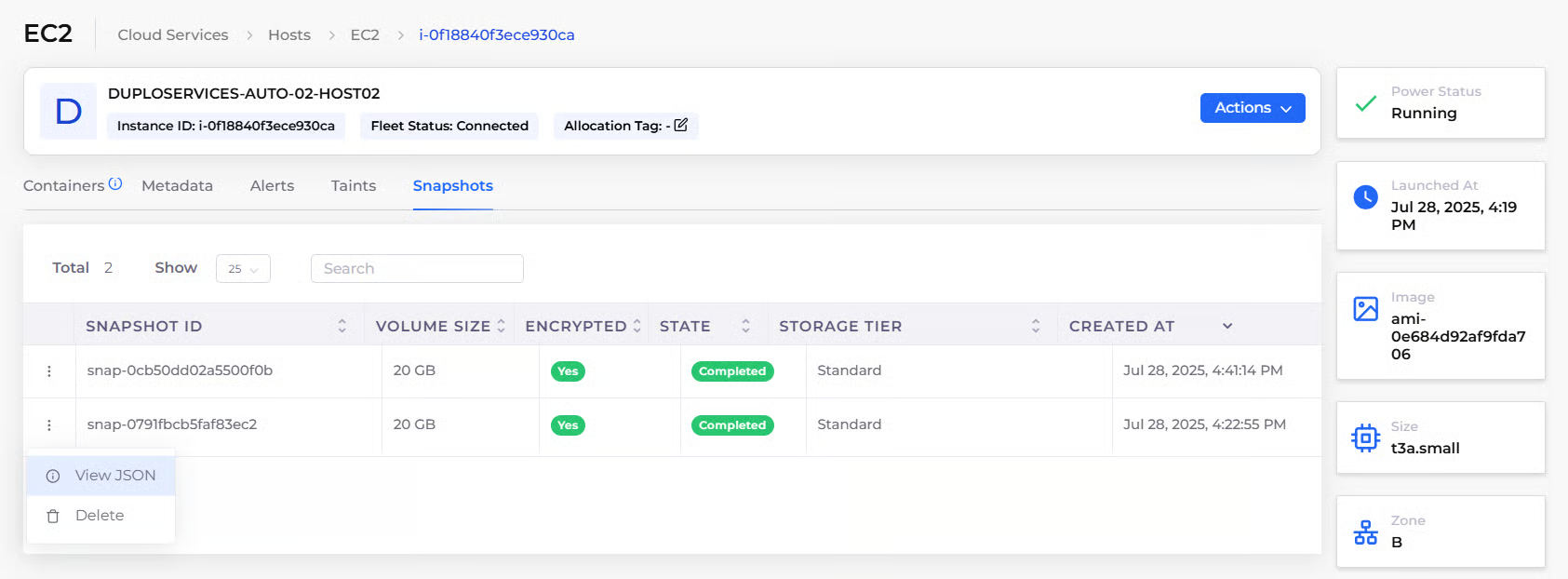
<figure><img src="https://2471407984-files.gitbook.io/~/files/v0/b/gitbook-x-prod.appspot.com/o/spaces%2F68cb0s9ce5UIUKWPuYs8%2Fuploads%2FwK8ujUF874M4eqXGFfrP%2Fimage.png?alt=media&#x26;token=bc00ca88-846f-4bf4-bacf-8f2f10721042" alt=""><figcaption><p><strong>Snapshots</strong> tab on the EC2 instance details page</p></figcaption></figure>
