> For the complete documentation index, see [llms.txt](https://docs.duplocloud.com/docs/llms.txt). Markdown versions of documentation pages are available by appending `.md` to page URLs; this page is available as [Markdown](https://docs.duplocloud.com/docs/automation-platform/overview-1/gcp-services/step-4-create-a-load-balancer.md).
# Load Balancers
Creating a Load balancer using GCP in DuploCloud
All containers run inside a private network and cannot be accessed from an external network. To make them accessible from an external network, create a Load Balancer.
## Creating a GKE Ingress
To create an Ingress Load Balancer, refer to the [GKE Ingress](/docs/automation-platform/kubernetes-overview/ingress-loadbalancer/gke-ingress.md) page in the DuploCloud Kubernetes User Guide.
{% hint style="info" %}
See the [GCP Quick Start](/docs/automation-platform/overview-1/quick-start.md) for an end-to-end example of deploying an application using a GCP Service.
{% endhint %}
## Adding a Load Balancer Listener
1. In the DuploCloud Portal, navigate to **Kubernetes** -> **Services**.
2. On the **Services** page, select the Service name in the **Name** column.
3. Click the **Load Balancers** tab.
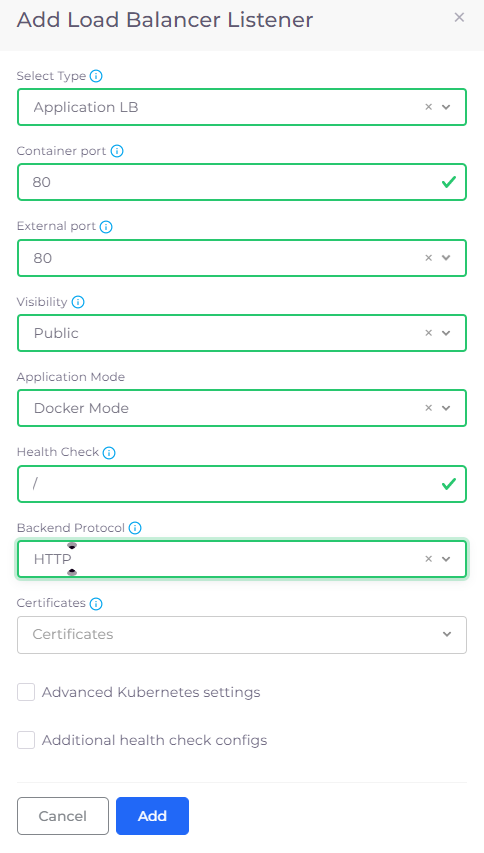
4. If no Load Balancers exist, click the **Configure Load Balancer** link. If other Load Balancers exist, click **Add** in the **LB listeners** card. The **Add Load Balancer Listener** pane displays.
5. From the **Select Type** list box, select a Load Balancer Listener type based on your Load Balancer.
6. Complete other Load Balancer fields as required:
* **Container Port**: Enter the port your container is listening on inside the application. Use **80** for HTTP or **443** for HTTPS. If you are using HTTPS, make sure you plan to configure SSL certificates later.
* **External Port**: Enter the port that will be exposed to the internet. For HTTP traffic, use **80**, and for secure HTTPS traffic, use **443**. If you're using HTTPS, ensure that you configure SSL certificates accordingly.
* **Visibility**: Select **Public** or **Private**
* **Application Mode**:
* **Docker Mode**: Choose this if your application is running inside containers (such as Docker or Kubernetes pods). This mode is optimized for containerized services.
* **Native App Mode**: Choose this if your application is running on virtual machines (VMs) or on bare-metal infrastructure, rather than inside containers.
* **Health Check**: This tells Kubernetes where to check the health of your application. Use `/` to check the root level of your service. If you have a custom health check endpoint, specify it here (e.g., `/health`).
* **Backend Protocol**: **HTTP** or **HTTPS**\
Choose **HTTP** for unencrypted traffic or **HTTPS** for encrypted traffic between the Load Balancer and your containerized service. HTTPS is highly recommended. If using HTTPS, SSL certificates are required.
* **Certificate**: Select the SSL Certificate to use. If you're using HTTPS, it's important to configure SSL certificates to ensure secure communication. Follow the instructions to [add SSL certificates for your domain](/docs/automation-platform/overview-1/prerequisites/certificate-for-load-balancer-and-ingress.md).
7. Optionally, enable and configure additional Load Balancer settings:
* **Advanced Kubernetes Settings:** Customize advanced Kubernetes configurations.
* **Set Health Check annotations for Ingress**: Add annotations for Ingress.
* **Additional Health Check configs**: specify the URL path that the Load Balancer will use to check if your service is healthy. You can use the root (`/`) path for a simple health check, or for more detailed monitoring, configure paths like `/health` or `/status`
* **Additional GCP Settings**: Enable GCP-specific optimizations and settings.
{% hint style="info" %}
DuploCloud allows no more than one (0 or 1) Load Balancer per DuploCloud Service.
{% endhint %}
The Add Load Balancer pane.
8. Click **Add** to create the Load Balancer.
## Adding a certificate for an internal Load Balancer in GCP
For internal Load Balancers, you cannot use Google Managed Certificates. You can import a certificate from somewhere else or use a self-signed certificate. We recommend using the self-signed certificate option for internal Load Balancers because you control authentication at the IP level.
Here's an example Terraform code snippet to create a self-signed certificate for an internal Load Balancer in DuploCloud:
```
resource "tls_private_key" "self_signed_key" {
algorithm = "RSA"
rsa_bits = 2048
}
resource "tls_self_signed_cert" "self_signed_cert" {
key_algorithm = "RSA"
private_key_pem = tls_private_key.self_signed_key.private_key_pem
subject {
common_name = "internal.example.com"
organization = "DuploCloud"
}
validity_period_hours = 8760 # 1 year
allowed_uses = [
"key_encipherment",
"digital_signature",
"server_auth",
]
}
resource "duplo_load_balancer" "internal_lb" {
name = "internal-lb"
type = "internal"
certificate = tls_self_signed_cert.self_signed_cert.cert_pem
private_key = tls_private_key.self_signed_key.private_key_pem
}
```
## Restricting Open Access to Public Load Balancers
Restrict open access to your public Load Balancers by enforcing controlled access policies.
1. From the DuploCloud Portal, navigate to **Administrator** -> **System Settings**.
2. Select the **System Config** tab, and click **Add**. The **Add Config** pane displays.
The Add Config pane in the DuploCloud Portal
3. From the **Config Type** list box, select **Flags**.
4. From the **Key** list box, select **Deny Open Access To Public LB**.
5. In the **Value** list box, select **True**.
6. Click **Submit**. Open access to public Load Balancers is restricted.
---
# Agent Instructions
This documentation is published with GitBook. GitBook is the documentation platform designed so that both humans and AI agents can read, navigate, and reason over technical content effectively. Learn more at gitbook.com.
## Querying This Documentation
If you need additional information that is not directly available in this page, you can query the documentation by asking a question.
Perform an HTTP GET request on the following URL with the `ask` and `goal` query parameters:
```
GET https://docs.duplocloud.com/docs/automation-platform/overview-1/gcp-services/step-4-create-a-load-balancer.md?ask=&goal=
```
`ask` is the immediate question: it should be specific, self-contained, and written in natural language.
`goal` is what the user is ultimately trying to achieve, the reason they need the answer. Sharing it helps GitBook give you a better, more relevant answer. A goal is most helpful when it describes the outcome the user wants rather than restating the question. For example, with `ask=how do I create an API token`, a goal like `automate deployments from our CI pipeline` lets GitBook tailor the answer to that use case.
The response will contain a direct answer to the question and relevant excerpts and sources from the documentation.
Use this mechanism when the answer is not explicitly present in the current page, you need clarification or additional context, or you want to retrieve related documentation sections.